DocsGetting started
Add Sortr to your server
Invite Sortr from the dashboard, what it asks Discord for and why, what to do when something is out of its reach, and the one server setting that decides which roles it can hand out.
Before Sortr can open tickets it has to be a member of your server. You add it once, from the dashboard, and Discord asks you to approve the permissions Sortr uses.
Dashboard › Your servers › Add Sortr
#Who can add it
Add Sortr as the server owner, or as a member with the Administrator permission. Your servers lists the servers where you are one or the other, and only the owner and Administrators can set Sortr up afterwards. Manage Server is not enough to use the dashboard. In a server whose owner requires two-factor authentication (2FA) for moderator actions, an Administrator also needs 2FA on their own Discord account to manage Sortr there. See Servers that require 2FA.
Sortr leaves straight away a server the people who run Sortr have blocked, whoever adds it, and a server added by an account they have blocked. To tell who added it, Sortr reads the server's audit log when it joins. It keeps nothing about a server it leaves this way.
#Add it
- Open the dashboard. Go to sortr.xyz/dashboard and press Continue with Discord to sign in (see Signing in).
- Find your server. Under Your servers, a server without Sortr has a grey icon and says "Sortr is not in this server yet". Press Sortr not added at the top to see only those.
- Press Add Sortr. Discord's own page opens in a new tab, with your server already picked. As the line under the button says, "By adding Sortr to a server, you agree to the Terms of Service and the Data Processing Terms for it."
- Approve it in Discord. Discord lists the permissions Sortr uses, each with a tick box. Leave them all ticked and confirm.
- Come back to the dashboard. Press Sync from Discord at the top of Your servers. The server now shows its member count and a Manage button.
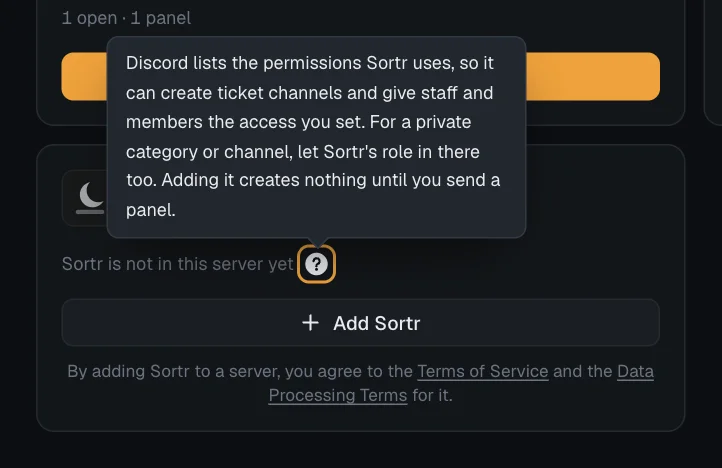
There are two other ways in. Add a server, at the end of the server list on the left (in the menu on a phone), opens the same Discord page without a server picked, so you choose it there. And if you open a server that does not have Sortr yet, its page offers Add Sortr, and Check again to press once you have added it. Both have the same terms line beside them.
#The welcome message
Once Sortr has joined, it says hello once: "Thanks for adding Sortr. By adding it, you agreed to Sortr's Terms of Service (https://sortr.xyz/terms) and Data Processing Terms (https://sortr.xyz/processing). Privacy Policy: https://sortr.xyz/privacy. Set it up at https://sortr.xyz/dashboard." It posts that in the channel where Discord posts its own messages about new members, when Sortr can see that channel and post there. Otherwise it sends it as a direct message to whoever added Sortr, if the audit log shows who that was and their direct messages are open. Removing Sortr and adding it back within 30 days does not send it again.
Good to know. Adding Sortr creates no channels, and posts nothing apart from the welcome message. It adds one slash command straight away, /help, which tells the server owner and Administrators where Sortr is set up, and other members how to open a ticket. While Ticket Tool is in the server, it also adds Import into Sortr to a message's Apps menu, for Administrators. Channels only appear when members press a panel you have sent, and the ticket commands once a panel switches them on.
#What it asks for, and why
Discord lists 20 permissions, each with a tick box: the 18 Sortr uses, such as Manage Channels, Send Messages and Pin Messages; View Audit Log, which Sortr uses only to see who added it; and Change Nickname, which only Customize bot uses for Sortr's display name. Sortr does not ask for Administrator. Permissions lists them all and what each is for. The ? beside "Sortr is not in this server yet" gives the short reason: "so it can create ticket channels and give staff and members the access you set". Three of Discord's rules about channels decide what that takes.
- To give people the access you set. A ticket is a channel, and everything you choose under Who can see it is a permission Sortr puts on that channel. Discord does not let a bot give a permission in a channel unless the bot holds that permission itself, so the list holds every permission a new panel's settings use. A permission on the list that Sortr's role does not hold is left off the ticket, and your log channel says so.
- To change who is in a ticket. Closing, reopening,
/addand/removechange the channel's permissions, which takes Manage Roles (in a channel's own settings, Discord calls it Manage Permissions). Discord lets only an Administrator put Manage permissions itself on a channel, so that one setting in the permission grid is left off tickets. - To work where it can see. A bot only sees and uses the categories and channels its role is let into. Your ticket categories, log channel and transcript channel can stay hidden from everyone else, as long as Sortr's role is let into each. See Private categories and channels.
This is what Sortr does with them:
| What Sortr does | When |
|---|---|
| Creates a ticket channel and sets who can see it | A member opens a ticket |
| Posts panels, opening messages, notices, log entries and transcript files | You send a panel, and as tickets open and close |
| Posts the files a member attached to the form's file questions | A ticket opens from a form that has them |
| Renames the channel, moves it between your categories, and takes away or gives back the access of the member and anyone added | A ticket is closed or reopened |
| Reads the conversation to save a transcript | A ticket closes or is deleted, or someone asks for one |
| Deletes the channel | Staff delete a ticket, or your automatic delete runs |
| Gives or removes the roles you picked | A ticket opens or closes |
| Removes Ticket Tool's panel message, or its first message in a ticket, and posts Sortr's in its place | You replace a Ticket Tool panel or take over its tickets (see Switching from Ticket Tool) |
If you untick some of them, Sortr works with the ones left ticked, wherever it can see. See If something is out of reach.
Besides the permissions, the invite asks Discord to let Sortr add its own slash commands, such as /new and /close, to your server.
#If something is out of reach
Sortr works wherever its role can see, with what its role holds. If the whole list was unticked on Discord's screen, or Manage Channels is taken off Sortr's role later, it cannot create ticket channels at all: a member who presses your panel is told "Sortr can't open tickets here right now. Let the server's staff know.", and no ticket opens until Sortr's role is given Manage Channels.
When a panel's settings use a permission Sortr's role does not hold, the ticket opens without that permission. If it is one the invite asks for, your log channel gets a Sortr cannot grant every permission entry naming what was left out, then: "Sortr's role is missing permissions it asks for. Press Re-add Sortr on this server's page in the dashboard, or give them to its role in Server Settings, Roles." Six permissions that only optional settings use, such as Manage Webhooks, are not on the invite: they are left off without a log entry. To use them in tickets, switch them on for Sortr's role in Discord, under Server Settings, then Roles.
The dashboard tells you when something a panel needs is out of reach, at the top of the server's page and of every panel's editor, with a warning: "Sortr can't reach everything your panels use." It names each permission Sortr's role is missing and each category or channel it cannot work in, and has Re-add Sortr and Check again, with the terms line under them. With nothing out of reach, there is no warning.
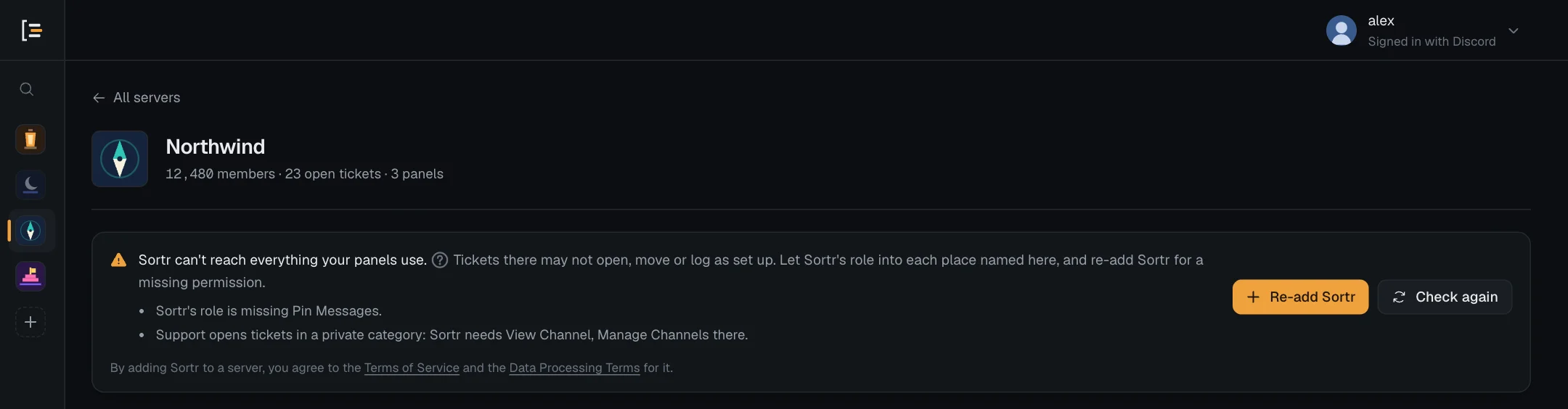
To fix what it names:
- A missing permission. Press Re-add Sortr. Discord's page opens with your server already picked and asks again for the permissions Sortr uses. Leave them ticked and confirm. Sortr stays in the server with its panels and tickets. Or, in Discord, open Server Settings, then Roles, pick Sortr's role and switch the permission on.
- A private category or channel. Let Sortr's role in, in that place's own permissions in Discord. Re-adding Sortr does not reach these. See Private categories and channels.
Then press Check again: the warning goes once Sortr can reach everything your panels use. Permissions lists what Sortr needs where, and what stops working without each permission.
#Where Sortr's role sits
One Discord rule decides which roles Sortr can hand out, whatever its permissions: a bot can only give or take away roles that sit below its own highest role in Server Settings › Roles. This matters in two places:
- Role triggers, the roles Sortr adds to or removes from the member when their ticket opens and closes (Who can see it, under When a ticket opens and When it closes).
- Each option's Give roles and Remove roles (Buttons, under Access and roles).
- Open your roles. In Discord, open Server Settings, then Roles.
- Move Sortr up. Drag Sortr's role above every role you want it to hand out or take away.
A role that sits at or above Sortr's is skipped. If you switch on the Role triggers ran event in your event log, its entry marks that role "(failed)".
Whatever its position, Sortr never gives a role with any moderation power: Administrator, Manage Server, Manage Roles, Manage Channels, Manage Webhooks, Manage Messages, Manage Threads, Manage Expressions, Manage Events, Manage Nicknames, Kick, Ban, Timeout, Mute, Deafen and Move Members, Mention Everyone, View Audit Log, View Server Insights, View Creator Monetization Analytics, or Pin Messages. A role that gets one of these in even one channel counts. Nor does it give a support role: a role on the Support team of any panel in the server, a deleted panel's kept settings included, or a role that counts as staff on a ticket Sortr took over from Ticket Tool, since whoever got it could read other members' tickets. Picking either kind of role to give is refused when you save. Sortr also skips roles managed by another app. Role hierarchy has the rest of the rules.
#Private categories and channels
Sortr cannot use a category or channel hidden from @everyone until its role is let in. Tickets cannot be created in a private category it is not let into: a member who presses your panel is told "Sortr can't open tickets here right now. Let the server's staff know.", and your log channel says which permissions are missing on which category.
- Edit the category. In Discord, right-click the category, choose Edit Category, then Permissions.
- Let Sortr in. Add Sortr's role and allow View Channel and Manage Channels.
The same goes for the other private channels Sortr works in:
- The channel you send a panel to needs View Channel, Send Messages, Embed Links and Read Message History for Sortr's role. The send window leaves out channels Sortr cannot see, and greys out a channel where it lacks one of the four, with "Sortr cannot post here". If one of the four is missing when you send, Send panel answers "Sortr can't post in that channel. Give its role View Channel, Send Messages, Embed Links and Read Message History there."
- Your log channel needs View Channel, Send Messages and Embed Links.
- A transcript channel needs those three plus Attach Files. With no transcript channel set, transcripts go to the log channel, which then needs Attach Files too.
Once Sortr is in, carry on with the Quick start. If your server uses Ticket Tool, Switching from Ticket Tool brings its setup over. Ticket Tool's tickets are private channels: Sortr sees them only if its role is given Administrator by hand for the switch (you can take it off afterwards) or let into each ticket channel. If something still does not work, Troubleshooting lists the usual causes.