DocsGuides
Several ticket types on one post
One panel post with Support, Billing and Report buttons, each opening a ticket with its own team, category and questions.
By the end of this guide you will have one post in your server with three buttons: Support, Billing and Report. Each button opens a ticket with its own support team, its own category and its own questions, so billing questions reach your billing staff and reports reach your moderators.
The idea behind it: every ticket type is a panel. One panel is posted, and its buttons open the others, which never need posting themselves.
#You will need
- To be the server owner or have the Administrator permission. Manage Server is not enough.
- A panel you already post, called Support in this guide. If you have none yet, follow Quick start first.
- A role and a category in Discord for each extra type, for example a Billing role with a BILLING category, and a Moderators role with a REPORTS category.
#Make a panel for each type
- Create the Billing panel. In the dashboard, pick your server. Above the list of panels, press New panel. Sortr asks for a name straight away, in a window titled Name this panel: type
Billingunder Panel name and press Create panel. This name is what{panel.name}prints in the ticket and in the event log. - Choose who answers. Go to Who can see it. On the Support team card, press Add role and pick your Billing role. It starts on Full access, so it can read, reply and use the close, transcript and delete buttons. The card asks whether the role should also get access to tickets that already exist. A new panel has none, so leave that off.
- Choose where tickets go. Go to Destination category. Under Where new tickets go, press Add a category and pick BILLING. Add one under Where closed tickets move as well if you want finished tickets out of the way. The list only offers categories Sortr can see: if BILLING is private, first let Sortr's role into it in Discord, with View Channel and Manage Channels in the category's permissions. See Private categories and channels.
- Ask your questions. Go to Questions, switch on Enable form and write up to 5 questions, such as the order number. Members answer them before the ticket is created, and the answers are posted inside it. See Questions.
- Name the channels. This one is optional. Go to Ticket channel and, under Name while open, set Pattern to
billing-{ticket.number}, so staff can tell the types apart in the channel list. - Save. Press Save changes at the bottom of the page.
- Repeat for Report. Make a panel called
Reportthe same way, with your Moderators role and the REPORTS category.
#Put them on one post
- Open the Support panel. Pick it in the panel picker on the panel row, above the left menu, or go back to the list. This is the panel members see.
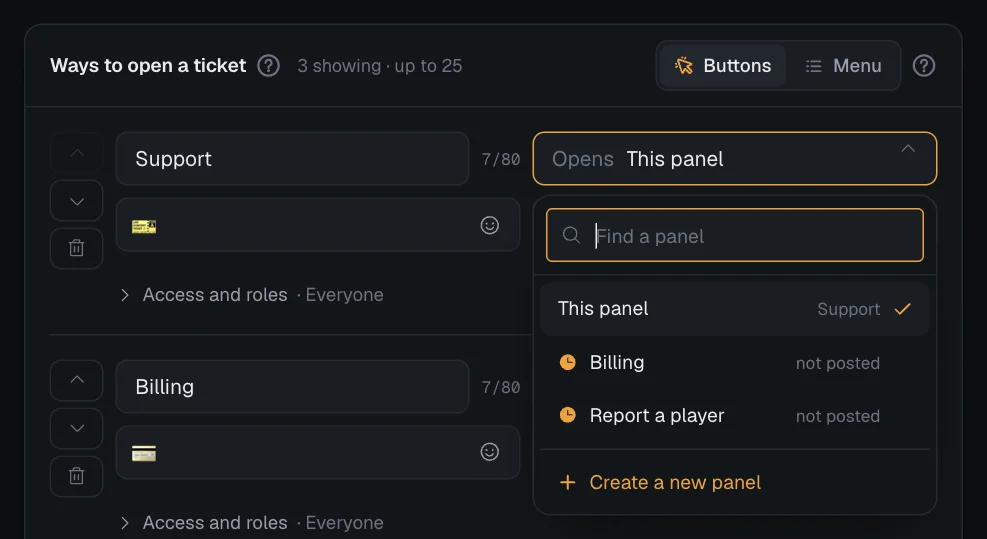
- Go to Buttons. It is in the left menu under What members see. The Ways to open a ticket card already has one option, Open ticket, which opens This panel. Change its text to
Support. - Add Billing. Press Add option. The new option starts pointed at the first of your other panels, with that panel's name as its text. Make sure the button text is
Billing, pick an emoji and a Colour, then open the Opens box and pick Billing. The list says "not posted" beside its name, which is expected: it never needs to be. - Add Report. Press Add option again, change the text to
Reportand point Opens at Report. Red suits a report button. - Update the post. Press Update on the panel row, beside the panel picker. While you have unsaved changes it reads Save & update, and saves them first. If the panel has never been posted, press Send panel instead, which reads Save & send while you have unsaved changes, and pick a channel.
Tip. No panel for a type yet? At the bottom of the Opens list, Create a new panel makes one on the spot. It is called New panel, it is unposted, and it starts on default settings, except that it takes this panel's transcript channel and event log channel. It is in the panel picker at once, linked to this panel. Pick it there: Sortr asks Save your changes first?, and Save and open saves the option and opens the new panel at Opening message. Press Rename on the panel row before members use it. More in Buttons.
Members now see this:
The default panel message names this panel's own support roles, through {staff.roles}. With other teams behind the other buttons, you may want to reword that line under Panel message.
Prefer a dropdown? Switch Buttons to Menu at the top of the card. Each option then gets a line of description under its name. One post can offer up to 25 options either way; buttons sit in rows of 5.
#Keep a type for certain roles
This part is optional. Every button stays visible to everyone, because Discord cannot hide a button from a role, but you can decide who may use it. Say Billing is for members with a Customer role only:
- Open Access and roles. On the Support panel, go to Buttons. Under the Billing option, press the folded row Access and roles.
- Pick who can use it. Set Who can use it to Only these roles, press Add role and pick Customer. Everyone except these roles works the other way round.
- Save. Press Save changes. The folded row now reads "Only Customer".
A member without the role who presses Billing gets a private reply titled "You can't open this kind of ticket", and no ticket or form opens. The server owner can always use every button, and so can Administrators, unless the button hands out a role at or above their own highest role or the server requires 2FA for moderator actions (see Buttons). Your support team gets no exception, so add their role too if they should be able to press it. The reply is the Not for their role message under Ticket Messages on the Support panel.
The same row can hand out roles. Under When a ticket opens from this button, Give roles and Remove roles change the member's roles once, when a ticket opens through that button, straight after the opened panel's own role changes. They are not handed back when the ticket closes or is deleted. See Buttons for the details.
#Try it
- Press Billing on the post. If Billing has questions, the form opens first. Once it is submitted, Sortr replies privately with the ticket number and a link to the new channel.
- Check the ticket. It is in the BILLING category, it shows the answers to Billing's questions, and your Billing role can see it. Your Support role cannot, unless its members are server administrators, who can see every channel in Discord.
- Check the panel list. On the server page, Billing and Report now sit under Support, indented, with the line "Opens from Support's buttons" instead of asking to be sent. The panel picker shows them linked to Support too. Their Panel message screen disappears, since nobody sees it.
Good to know. A ticket follows every setting of the panel its button opens, including Limits and rules, Automations, Transcripts/Logging and Integrations. Two things stay with the posted panel: the button's own Access and roles, and the posted panel's blocked roles, which apply as well as those of the panel the ticket opens in. Limits count per panel, so a member with an open Billing ticket can still open a Report ticket. Ticket numbers count across the whole server, shared by every panel.
#Related
- Buttons: every option setting, who can use an option, and buttons against a menu.
- Panels: creating, renaming, sending and updating panels.
- Who can see it: support roles and what each may do.
- Destination category: where tickets go, and what happens when a category is full.
- Limits and rules: how many tickets, how often and when, per panel.