DocsAfterwards
Slash commands
Let people open, close and manage tickets by typing a command in Discord, choose which commands exist and pick who can use each one.
Slash commands let your team open, close and manage tickets by typing in Discord rather than pressing buttons. They are off until you switch them on for a panel. You choose which commands exist and who can use each one: your support team, unless you pick other roles.
Dashboard › your server › a panel › Slash commands
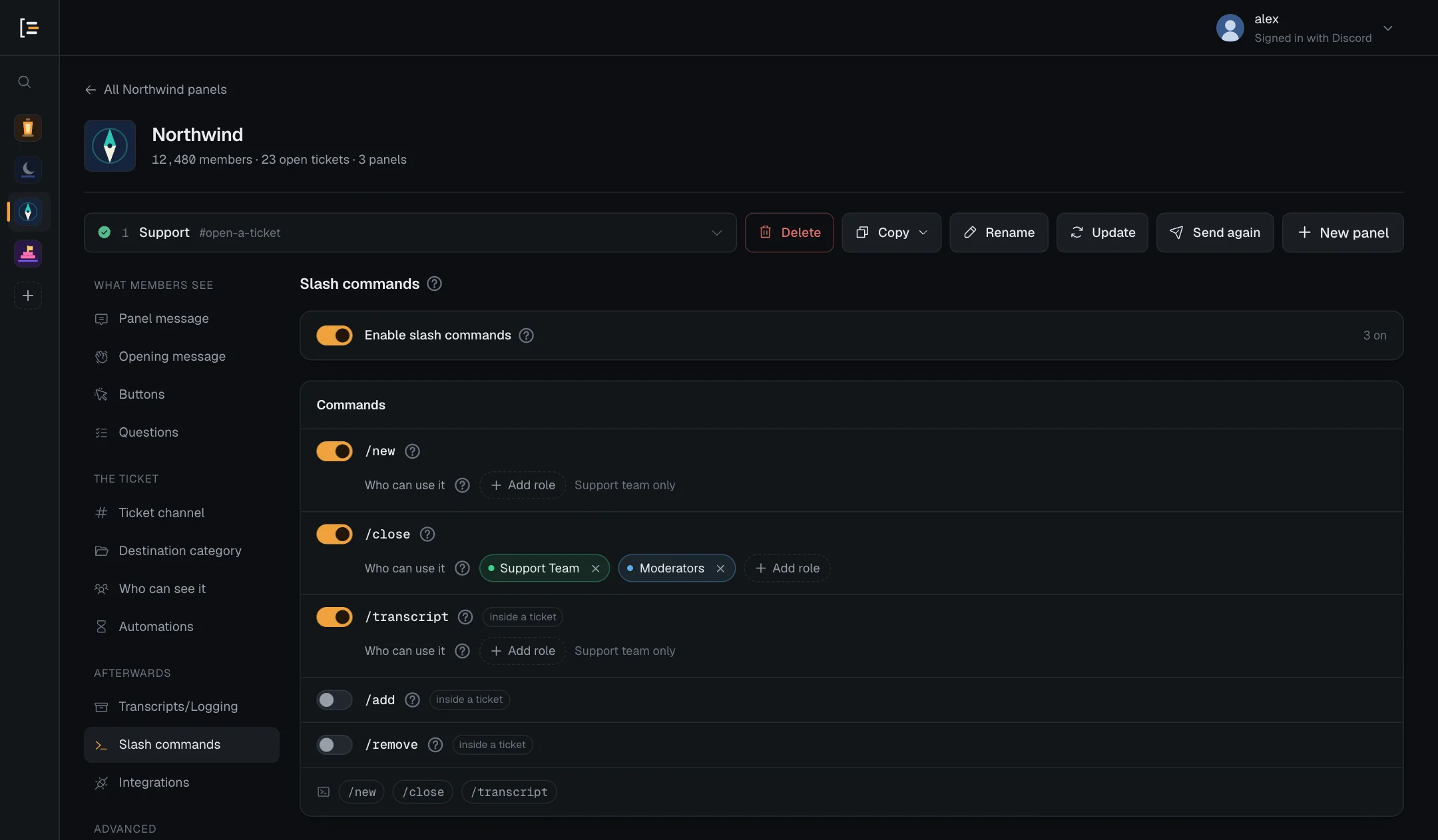
#Turn slash commands on
- Open the panel. In the dashboard, pick your server, then the panel.
- Go to Slash commands. It is in the left menu under Afterwards.
- Switch on Enable slash commands. The list of commands below it becomes available.
- Choose the commands. Switch each one on or off. The ? beside a command says what it does. Commands tagged inside a ticket only work in a ticket channel.
- Pick who can use each one. A Who can use it row appears under each command that is switched on. Leave it on Support team only, or press Add role to pick the roles that may use it. See Who can use a command.
- Save. Press Save changes.
A new panel starts with slash commands off. When you switch them on, /new, /close and /transcript start on, and /add and /remove start off.
Nothing changes in Discord until you save. About five seconds after a save that changed the commands, Sortr adds the commands this panel has on, and removes a command once no panel in the server has it on. New commands usually appear within seconds, but Discord can take a few minutes to show the change to everyone. While Commands registered or removed is ticked in the event log, which it is by default, each command added or removed is posted to your log channel. Switching a command on or off on a panel, or changing its roles, is named in that panel's Settings changed entry, for example "Changed: slash commands (/close switched on, /new roles changed)".
#The commands
| Command | What it does | Where | Starts |
|---|---|---|---|
/new | Opens a ticket for you, or for the member you name. | Anywhere | On |
/close | Closes the ticket you are in, or the one you pick, with an optional reason. | Anywhere | On |
/transcript | Saves a transcript of the ticket and sends you the file. | Inside a ticket | On |
/add | Gives someone access to the ticket you are in. | Inside a ticket | Off |
/remove | Takes out someone who was added to the ticket you are in. | Inside a ticket | Off |
These five are the commands a panel controls. Panels are posted from the dashboard, with Send panel. Every server also has /help, for everyone, whatever its panels switch on: it is not set on this screen, and the Slash commands changed log entry never names it (see /help). While Ticket Tool is in the server, Discord's Apps menu on a message also has Import into Sortr, for the server owner and Administrators; it is not set on this screen (see Import into Sortr and Switching from Ticket Tool). Commands has the full reference: every option, who may use each command, and what Sortr replies.
#Who can use a command
Two separate things are at work. Sortr decides who can use a command. Discord decides who sees it in its list. Seeing a command never lets someone use it.
Sortr decides each time a command is run, by the panel: the panel being opened from for /new, the ticket's own panel for the rest.
| Under Who can use it | Who can use the command |
|---|---|
| No roles picked (Support team only) | Only the support team: the roles under Who can see it that have Full access. |
| Roles picked | Only members holding one of them. The support team no longer can, unless they hold one too. |
| Either way | The server owner always can, and so can Administrators, except in a server that requires 2FA for moderator actions (see Servers that require 2FA). For /new, an Administrator also goes by the rows above, like any member, when the panel gives a role at or above their own highest role. |
Anyone else gets a short reply that only they see: "Only the support team can use /close here." while no roles are picked, or "Only some roles can use /close here." once roles are picked, each with the name of the command they ran. These replies are fixed and cannot be reworded.
- The ticket owner. The member who opened a ticket cannot use
/close,/transcript,/addor/removeunless a role they hold is picked. They close their ticket with the Close button. - A role that is not on the support team. When you pick one for
/close, its members can only close a ticket they are in. Naming another ticket gets "You can only close a ticket you are in." - Opening a ticket for someone else.
/newwith a member named always needs the support team, whichever roles you pick. On a panel that gives a role at or above the person's own highest role, only the server owner can: see Who can pick which roles. - Every member. @everyone cannot be picked. To let every member use a command, pick a role they all hold.
- Buttons. The role lists on Ticket buttons do not reach commands, and command roles do not reach buttons.
- Viewer roles. A support role set to Viewer under Who can see it has Use application commands denied in the ticket channel, so Discord does not let that role run slash commands there, whatever you pick here. Pick one for
/close,/transcript,/addor/removeand the screen warns you under the roles, for example "Helpers is set to Viewer under Who can see it, which blocks slash commands inside tickets, so its members cannot use /close there." A support role with that permission denied by hand gets the same warning in other words.
#Who sees a command
While no panel in the server has roles picked for a command, Discord lists it only for members with the Manage Messages permission, which keeps it out of ordinary members' lists. Once any panel picks roles for it, Discord lists it for every member, because Discord cannot show a command to certain roles only. Members who may not use it then get the private reply above.
A support role without Manage Messages does not find the command in Discord's list, although Sortr would let it run. There are two ways round that:
- Pick that role under Who can use it. Discord then lists the command for every member, and Sortr lets only the picked roles use it.
- Change who sees the command in Discord, under Server Settings › Integrations › Sortr.
#Pick the roles for a command
- Switch the command on. The Who can use it row appears under it, reading Support team only.
- Add the roles. Press Add role and pick one. You can pick up to 25 for each command. After that the button reads Up to 25 roles.
- Save. Press Save changes. Sortr uses the new roles from the next time the command is run.
To hand a command back to the support team, remove every role with its ×. The roles you picked are kept while a command is switched off, and come back when you switch it on again.
On a panel that gives the ticket owner a role at or above your own highest role, only the server owner can switch /new on or let more roles use it: by picking a role for it, by removing its roles so the support team uses it, or, while no roles are picked, by adding a support role on Full access or setting one to Full access under Who can see it. Taking a role off /new while others stay picked is allowed. Anyone else's save is refused with a message such as "Only the server owner can let more members get "VIP", because it is above your highest role. This save would do that by changing who can open tickets with /new." See Who can pick which roles.
Good to know. Discord's Integrations settings only change who sees a command. They cannot let more people use it: Sortr still checks the panel's roles each time.
#One command list per server
Discord keeps one list of commands for a whole server, not one per panel. That has a few effects:
- A command appears in Discord once one panel has it switched on, and disappears only when no panel has it on. A server with none switched on still has
/helpin the list. - Who sees a command is settled for the whole server too: one panel picking roles for a command makes Discord list it for every member.
/close,/transcript,/addand/removefollow the panel of the ticket they are run in: that panel's switch, and that panel's roles under Who can use it.- A command switched off on a panel is refused in that panel's tickets, even when another panel has it on: "/close is switched off for this panel." The server owner can still use it there, and so can Administrators, except in a server that requires 2FA for moderator actions.
/newonly opens tickets from panels that have/newswitched on.
#/new on several panels
Switch /new on for more than one panel and one command covers them all. When someone runs it, Sortr offers only the panels that person may use /new for:
- Several panels. Sortr shows a menu that only they can see, "Pick the panel this ticket should come from.", with the panels oldest first. They pick a panel and the ticket opens with that panel's settings.
- One panel. Sortr opens from that panel without asking.
- No panel allows them. They get "Only some roles can use /new here." when any panel with
/newon has roles picked for it, and "Only the support team can use /new here." when none has. - No panel has
/newon. Discord can still list the command for a moment after the last panel switched it off. Sortr then answers "/new is switched off in this server."
A ticket opened with /new skips the panel's Questions and the rule on who can use a button or menu option, since it does not go through one. The panel's Limits and rules still apply to the member the ticket is for.
The buttons in a ticket do the same jobs as these commands. You can hide a button and keep the command, for example to close tickets only by command. The member who opened the ticket then needs a role picked for /close to close it. See Ticket buttons.