DocsAdvanced
Ticket buttons
Restyle, hide or restrict the buttons Sortr puts inside a ticket: Close, Confirm close, Cancel close, Reopen, Transcript and Delete.
Once a ticket exists, Sortr attaches buttons to its own messages: Close under the opening message, then Reopen, Transcript and Delete once the ticket is closed. This screen sets how each one looks and who may press it.
Dashboard › your server › a panel › Ticket buttons
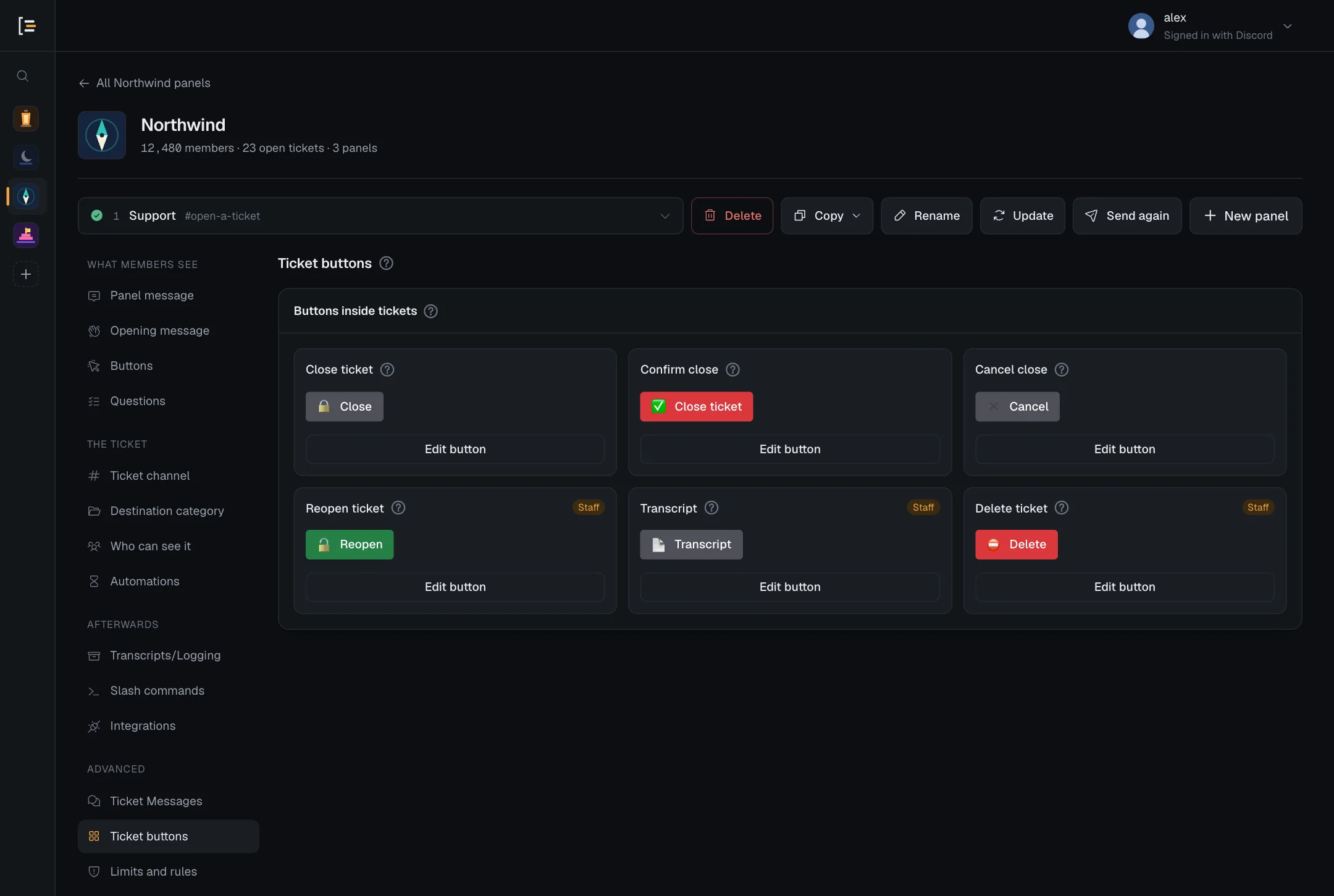
#The six buttons
The Buttons inside tickets card lists them. Each is wired to one action, so you can restyle, hide or restrict a button, but not add new ones. The buttons members press to open a ticket are set under Buttons.
| Button | Where it appears | Default look | Who can press it by default |
|---|---|---|---|
| Close ticket | Under the opening message in every ticket | 🔒 Close, grey | The ticket owner and the support team |
| Confirm close | On the close confirmation, which only the person who pressed Close sees | ✅ Close ticket, red | The ticket owner and the support team |
| Cancel close | On the close confirmation | ✖️ Cancel, grey | Whoever pressed Close, unless one of their roles is under its Blocked roles |
| Reopen ticket | On the Ticket closed notice, and on Closed for inactivity. A reopen takes these three buttons off the notice. | 🔓 Reopen, green | The support team only |
| Transcript | On the same closed notices | 📄 Transcript, grey | The support team only |
| Delete ticket | On the same closed notices | ⛔ Delete, red | The support team only |
The support team means the roles set to Full access under Who can see it, plus the server owner and Administrators. Roles set to Contributor or Viewer do not count. In a server that requires 2FA for moderator actions, Administrators other than the owner count only through such a role. See Servers that require 2FA.
On the card, a button shows Staff when it is for the support team only, and Hidden when it is switched off. Delete removes the channel and its history for good, after asking once to confirm. What each action does to the ticket is explained in How tickets work.
#Change a button
- Open Ticket buttons. In the dashboard, pick your server, then the panel. It is in the left menu under Advanced.
- Pick the button. Press Edit button on the one you want.
- Set how it looks. Change Button text (up to 80 characters), pick a Button colour (Blue, Grey, Green or Red), and choose the emoji under Button emoji. Turn Button emoji off for text only. The Preview shows the result.
- Set who may press it. Use Support team only, Allowed roles and Blocked roles, described below.
- Go back and save. Press All buttons to return to the list, then Save changes. Reset puts that one button back to its default look and rules.
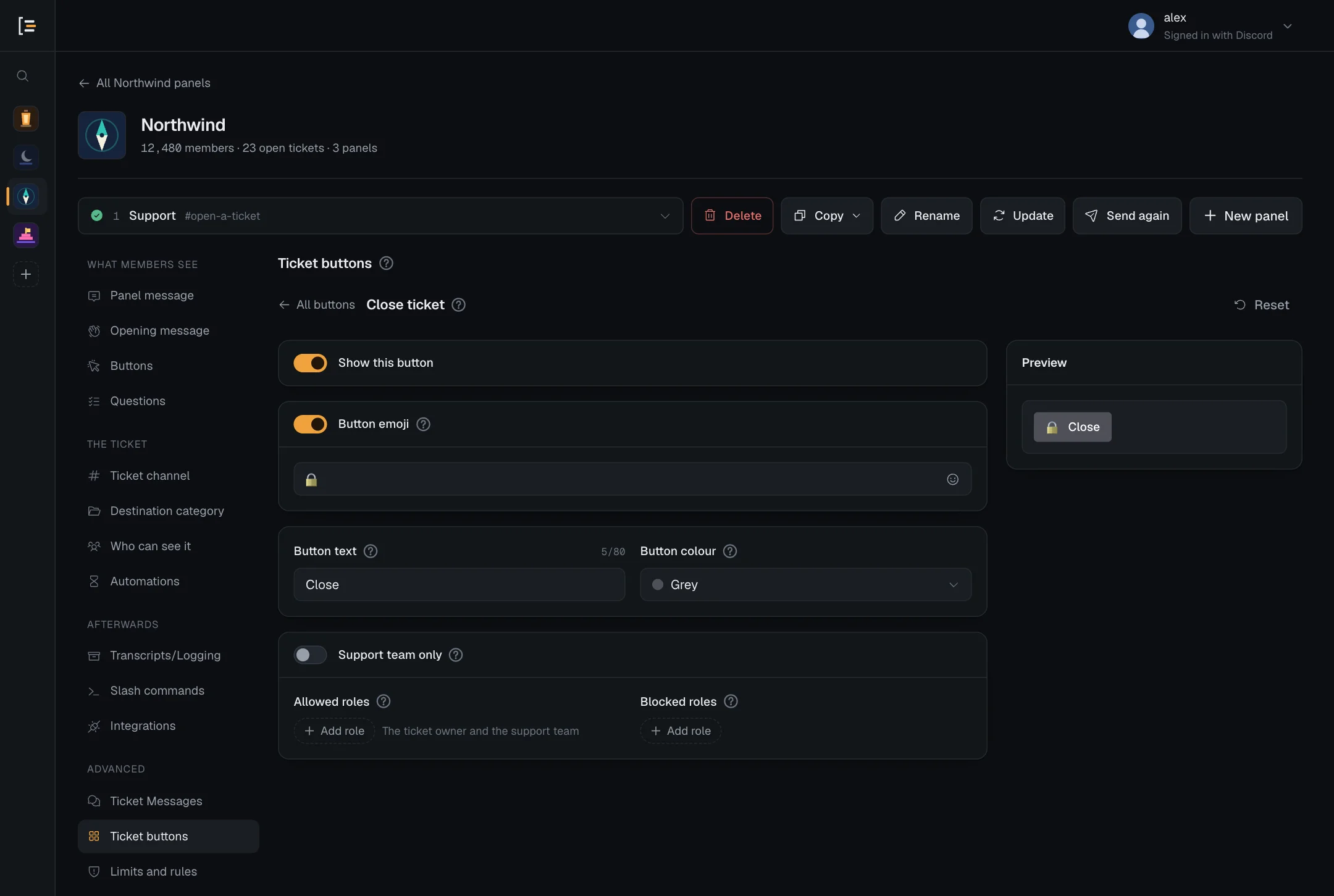
The colour is decoration and changes nothing about what the button does. The rules for emoji are the same as for ticket options, see Emoji on buttons and options.
A new look shows on messages Sortr sends from then on. Messages already in a ticket keep the look they were sent with. A change to who may press a button takes effect at once, on messages already posted too.
Save changes stays off while a shown button has neither text nor emoji, since Sortr would leave it off the message. The screen says "With no text and no emoji, Sortr leaves this button off the message. Add one, or hide the button." It also stays off while a shown button has Button emoji on with an empty box or an emoji Discord would refuse.
#Who can press a button
Three settings on each button decide it:
- Support team only: only the support team may press it. On by default for Reopen, Transcript and Delete.
- Allowed roles: members with one of these roles can press the button as well as whoever already could. Allowed roles add people. They do not keep anyone else out.
- Blocked roles: members with one of these roles cannot press it. Blocked wins over allowed, and over being on the support team. It never stops the server owner or Administrators, who can press every button that is shown. In a server that requires 2FA for moderator actions, that is the owner alone.
Each list holds up to 50 roles, after which Add role reads Up to 50 roles. A role cannot be in both lists. While Allowed roles is empty, the text beside it says who can press the button as things stand:
| Text beside Allowed roles | When you see it |
|---|---|
| Support team only | Support team only is on, for any button. |
| The ticket owner and the support team | Close ticket and Confirm close with Support team only off. Closing always stays with the owner and the team, unless you allow a role by name. |
| Whoever pressed Close | Cancel close. Only the person who pressed Close sees the confirmation, so allowed roles change nothing there. Blocked roles still apply: a member with one of them gets "That is not something your role can do here." and the ticket stays open. |
| Anyone in the ticket | Reopen, Transcript or Delete with Support team only off. Anyone who can see the message can press it, including the member who opened the ticket, so allowed roles add nobody. The preview warns about this. |
Someone who presses a button they may not use gets a short note only they can see, such as "That is for the support team." or "Only the ticket owner or support can close this.", and the ticket is left alone.
Tip. Closing takes two buttons. To let an extra role close tickets, or to keep a role from closing them, set the same rule on both Close ticket and Confirm close.
Each of the two keeps its own lists, and Sortr checks each press on its own. When they disagree in a way that lets someone press Close and then turns them away at Confirm close, the screen warns you, under the list of buttons and inside both buttons. It names three cases:
- a role allowed on Close ticket but not on Confirm close. A support role with Full access is left out, since the support team passes Confirm close anyway;
- a role blocked on Confirm close but not on Close ticket;
- Support team only on for Confirm close but not for Close ticket, which turns away the member who opened the ticket.
Make the two match, as the warning says, and it goes away. Nothing is said while either button is hidden.
These lists only cover the buttons. The /close and /transcript commands have their own rule under Slash commands: a role blocked on the Close button can still use /close if the command lets it, and a role picked for a command gains nothing on the buttons.
Good to know. Do not mix this up with an option's Only these roles on the Buttons screen. That setting decides who can open a ticket, and it does keep everyone else out.
#Two buttons that ask first
Two actions show a private prompt with a button of their own before anything happens. Those two buttons are fixed and are not on this screen.
- Delete always asks once. The prompt says "Deleting removes the channel and everything in it for good.", then what becomes of the conversation: "A transcript is saved first.", "Its transcript is already saved." or "No transcript is kept, because transcripts are switched off for this panel." Pressing the red Delete ticket button on it deletes the ticket, and the channel goes 8 seconds later. Dismissing the prompt keeps the ticket.
- Reopen asks only when staff have written in the ticket since it closed. The prompt names everyone who would get the channel back, up to 20 and then how many more, since reopening lets them scroll up and read those messages, and has a red Reopen anyway button.
The rules above apply to both presses: whoever may not press Delete cannot confirm it either.
#Hide a button
Turn off Show this button and Sortr stops attaching it. The card marks it Hidden. A hidden Close, Reopen, Transcript or Delete button also stops working on messages already sent: pressing an old one answers "That button has been switched off." If Discord ever refuses the opening message or the Ticket closed notice and Sortr posts a plain line in its place, a hidden button is left off that line too.
The preview on the edit screen says what hiding leaves you with:
| Hidden button | What is left |
|---|---|
| Close ticket | A ticket can only be closed with /close, when it is switched on under Slash commands, or by the automatic close. |
| Confirm close | The close confirmation has nothing to press to go through with it. Tickets then only close with /close or the automatic close. |
| Cancel close | The close confirmation has no way to back out. Dismissing it leaves the ticket open. |
| Reopen ticket | A closed ticket cannot be reopened. There is no slash command for it. |
| Transcript | The closed notice has no Transcript button. /transcript still saves one when it is switched on, and the transcripts set up under Transcripts/Logging are still saved. |
| Delete ticket | A closed ticket is only deleted by the automatic delete, or by hand in Discord. There is no slash command for it. |
The commands are not open to everyone. With no roles picked for it, /close or /transcript is for the support team only. With roles picked, it is for those roles only. The server owner can always use it, and so can Administrators, except in a server that requires 2FA for moderator actions. The member who opened a ticket cannot use /close unless a role they hold is picked, so hiding Close ticket takes closing away from them. See who can use slash commands.
Careful. A channel deleted by hand in Discord is never saved as a transcript. If you hide Delete ticket, switch on automatic delete rather than clearing channels yourself.