DocsGuides
Get new tickets in Slack or email
Post each new ticket to Slack or send it by email through Zapier or Make, using a webhook, or keep it in Discord with the event log.
By the end of this guide, every new ticket on a panel posts a message in a Slack channel or sends you an email, with who opened it and what they wrote. Sortr hands the ticket to Zapier or Make through a webhook, and that service does the posting.
A webhook is a web address Sortr sends a short message to each time something happens to a ticket. Zapier and Make give you that address, and turn whatever arrives into a Slack message, an email, or anything else they support.
#You will need
- To be the server owner or have the Administrator permission.
- A panel that is set up and posted.
- A Zapier or Make account, connected to your Slack workspace or email.
#Get an address from Zapier or Make
- Start a new automation. In Zapier, create a new Zap. For its trigger, choose the webhook trigger that catches incoming requests. In Make, the equivalent is a custom webhook. Either way, you get an address starting with
https://. - Copy the address. Keep that tab open; you will come back to it. Keep the address private, like a password: anyone who has it can send your automation requests that look like tickets. Sortr stores it encrypted and shows only its site in the event log.
#Add the webhook in Sortr
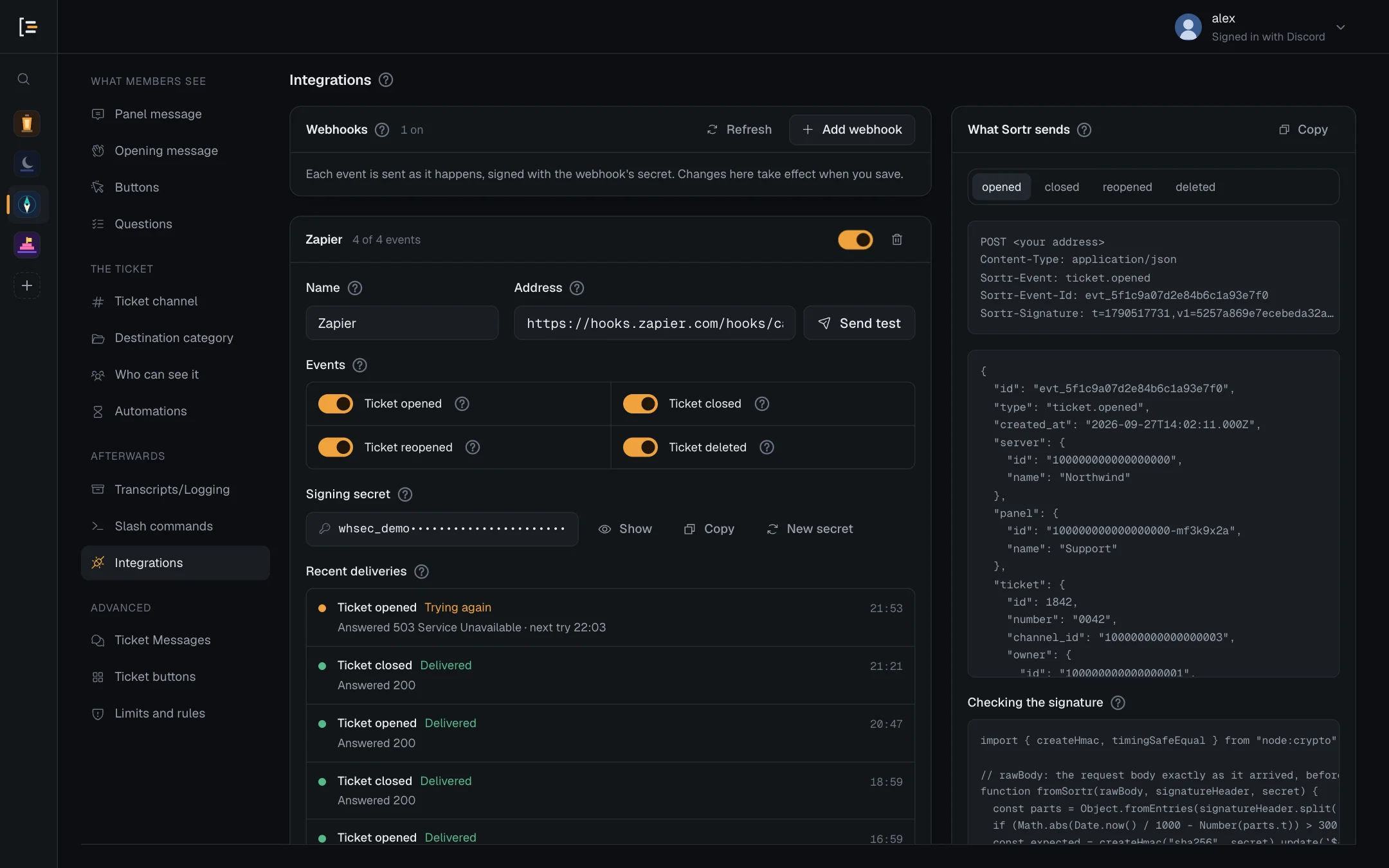
- Open the panel. In the dashboard, pick your server, then the panel, and go to Integrations, under Afterwards in the left menu.
- Press Add webhook. Give it a Name such as
Zapier. The name only shows in the dashboard, to tell webhooks apart. - Paste the address. Put it in Address. It has to start with
https://. - Press Send test. Sortr sends a test event straight away. A green note starting "It works. Answered 200" means the address is right. Otherwise the note says what went wrong. Check that you copied the whole address.
- Pick the events. Under Events, keep Ticket opened on and switch off Ticket closed, Ticket reopened and Ticket deleted, so only new tickets reach you. Leave the Signing secret alone: Zapier and Make do not need it.
- Save. Press Save changes at the bottom of the page. Events are only sent for a saved webhook.
#Build the Slack message or email
- Open a real ticket. Press your panel's button in Discord and open a test ticket. Sortr sends a Ticket opened event with real details, which makes a better sample than the test.
- Load the sample. Back in Zapier, test the trigger and pick the request whose type is
ticket.opened. The request from Send test has the typepingand no ticket in it. - Add the action. Add a Slack step that sends a message to a channel, or a step that sends an email. Write the message and insert fields from the sample: the ticket number, the ticket owner's username, the panel name, and the answers to your questions.
- Switch it on. Publish or switch on the automation.
Each event Sortr sends carries the server's and panel's names, the Discord ids, usernames and display names of the people involved and, for a new ticket, every question and answer (for a question that takes files, the files' names, sizes and types, never the files). All of that goes to Zapier or Make, and whatever you put in the message goes on to Slack or the inbox. Choose the fields with that in mind: once the data leaves Sortr, what happens to it there is up to your server (see Privacy and data).
Tip. To link straight to the ticket, write https://discord.com/channels/ into the message, then insert the server id, a /, and the ticket's channel id from the sample.
#Try it
- Open another ticket. Sortr sends the event within seconds, and the Slack message or email arrives as soon as Zapier or Make passes it on.
- Check Recent deliveries. In Sortr, each webhook lists its last ten events under Recent deliveries. Press Refresh at the top of the Webhooks card to update it. Your ticket shows as Ticket opened, Delivered. If it says Trying again or Failed, the reason is underneath. Sortr keeps retrying a failed event, waiting longer each time, for up to a day.
Good to know. Webhooks belong to one panel, up to 5 each. A ticket is reported by the panel its button opens, so if your post opens other panels, as in Several ticket types on one post, add the webhook to each of them too. Once in a while the same event can arrive twice.
#Staying in Discord: the event log
If your team lives in Discord, you do not need a webhook, and Sortr does not accept an address on Discord anyway. By default, each new ticket's opening message already mentions the panel's support roles. For one staff channel that lists every new ticket, use the event log:
- Go to Transcripts/Logging. In the panel, open Transcripts/Logging and the Event log tab.
- Pick the channel. Under Log channel, pick a staff channel.
- Pick the events. Ticket opened is on by default, along with a few others. Untick anything you do not want in that channel.
- Save. Press Save changes.
The log post pings nobody. To be notified of each one, set that channel's notifications to All Messages in Discord. Like webhooks, the log channel is set per panel.
#Related
- Webhooks: every webhook setting on the Integrations screen.
- Webhook reference: what each event contains, for developers.
- Event log: every event Sortr can post to a channel.
- Several ticket types on one post: one post that opens several panels.