DocsWhat members see
Buttons
Choose how members open a ticket from your panel, with buttons or a menu, which panel each option opens and which roles may use it.
This screen sets the ways members open a ticket from your panel message: a row of buttons or one menu, the panel each option opens, and who may use each one. The buttons inside a ticket, such as Close and Reopen, are set under Ticket buttons.
Dashboard › your server › a panel › Buttons
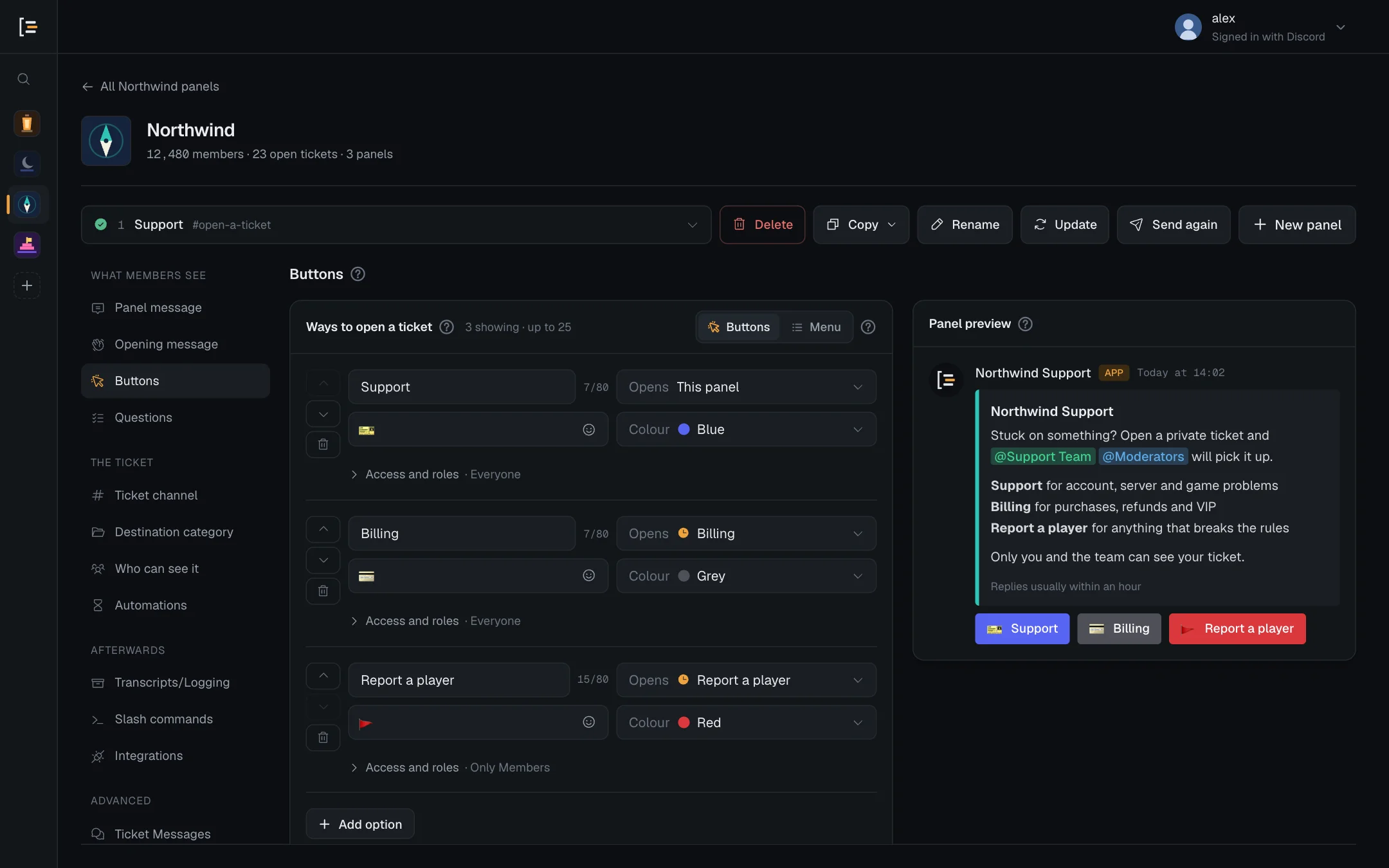
#Ways to open a ticket
The Ways to open a ticket card is one list of options. Each option opens a ticket with the settings of the panel it points at: that panel's category, support roles, questions, messages and limits. So one post can offer Support, Billing and Report a player, each going to its own queue, and the panels behind Billing and Report never need posting themselves.
Use the switch at the top of the card to show the list as Buttons or as a Menu. Discord allows one or the other on a message, never both.
- Buttons sit under the message in rows of five, up to 25 in five rows.
- Menu puts up to 25 options in one dropdown, with a line of description under each. It suits a long list.
A new panel starts with one blue Open ticket button with 🎫 that opens a ticket from this same panel.
#Each option
| Setting | What it does | Limit |
|---|---|---|
| Button text or Name | What members read on the button, or in the menu. | 80 characters on a button, 100 in a menu |
| Emoji | Shown before the text. Pick one, or leave it empty. | One emoji |
| Opens | The panel whose settings the ticket uses: This panel, or any other panel in the server. The list has a search, and says whether each panel is live, not posted or needs attention. | |
| Colour | Buttons only. Blue, Grey, Green or Red. The colour is decoration and changes nothing about what the button does. | |
| Description | Menu only. A short line shown under the name. | 100 characters |
| Placeholder text | Menu only, one for the whole menu. The grey text before anyone picks something. Starts as "Select one to open a ticket". | 150 characters |
| Access and roles | Folded under each option. Who may use it, and roles to give or remove when a ticket opens from it. See Access and roles. | 25 roles per list |
A button can show only an emoji with no text. A menu option always needs a name. Two options can open the same panel, for example "Refund" and "Invoice" both going to Billing.
If you switch a menu to buttons, a name longer than 80 characters no longer fits. Save changes is then blocked until you shorten it, and the save bar names the option with "at most 80 characters on a button, 92 now.", so nothing is cut off on the post.
#Add, order and remove options
- Press Add option. The new option points at the first other panel in your server and takes its name. With no other panels, it points at this one.
- Fill it in. Change the text, pick an emoji, check Opens, and set a colour or description.
- Put it in order. The arrows beside each option move it up or down. The bin removes it.
- Try it. The Panel preview beside the list shows the post with your options. Press a button or open the menu to check it.
- Save, then update. Press Save changes, then Update on a panel that is already posted, so members see the new set.
Reset options, under the card, goes back to the single Open ticket button.
#Make a new panel from an option
You can create the panel an option opens without leaving this screen.
- Choose Create a new panel. It is the last row of the option's Opens list. The field reads "Creating…" for a moment.
- Sortr makes the panel straight away. It is called "New panel", has default settings and is not posted. It starts with this panel's transcript channel and event log channel, so its transcripts and log entries have somewhere to go. Nothing else is copied.
- Save, then update. The option now points at the new panel, and a notice says "This option opens it once you save." Press Save changes to keep the link, then Update on a panel that is already posted.
- Set the new panel up. It is already in the panel picker, tagged with this panel's name. Pick it, rename it, and give it its own category, support roles and questions.
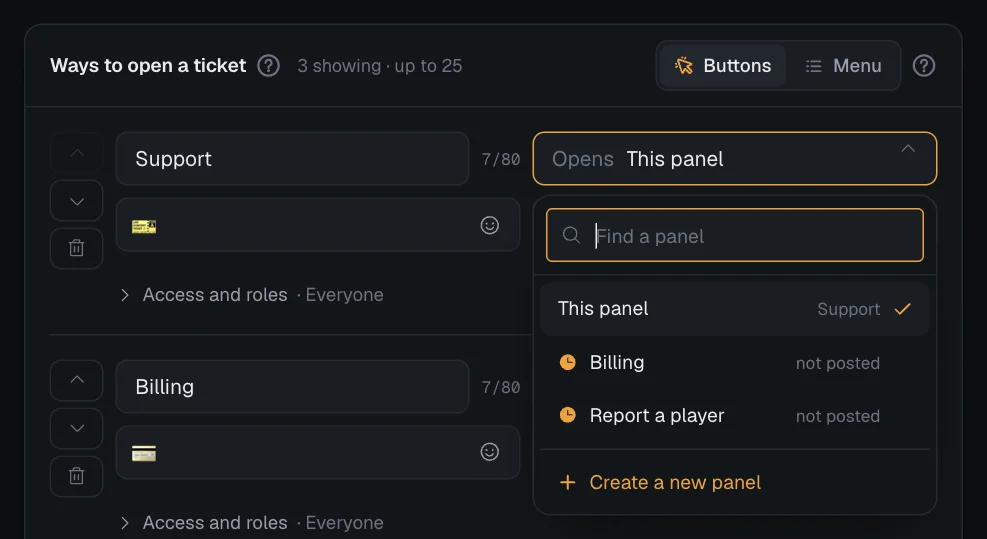
If you pick the new panel before saving, Sortr asks Save your changes first? Save and open keeps the link and opens the new panel, Discard changes opens it without the link, and Keep editing stays where you are. The new panel exists from the moment it is created: if you discard your edits or remove the option, it stays in your panel list as a separate, unposted panel until you delete it.
Once the link is saved, members only reach the new panel through this option. Such a panel has no Panel message section, since its own message is never posted, and its editor opens on Opening message. A server can have up to 25 panels.
#When an option will not show
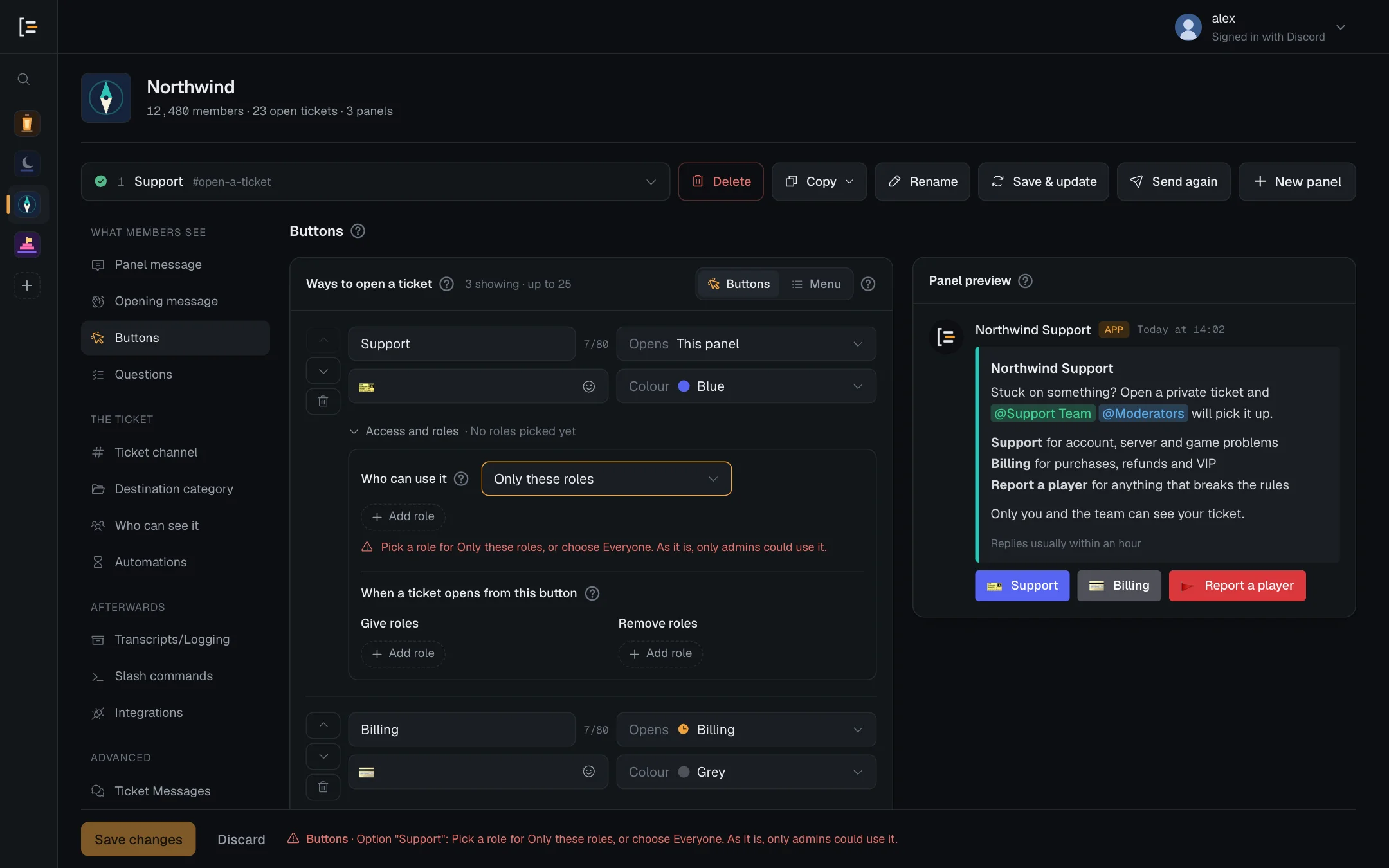
The screen marks an option in red when it cannot work as it is, and Save changes stays off until it is fixed:
- a button with neither text nor emoji, or a menu option with no name;
- no panel picked under Opens;
- the panel it opened has been deleted (it shows as "(deleted panel)");
- an emoji Discord does not accept (see Emoji below);
- Only these roles with no role picked (see Who can use it).
A panel with no options at all can still be saved, for a panel you only use through slash commands. The card then says nobody could open a ticket from this panel.
#When members see a change
A new or restyled option reaches members the next time you send or update the panel. Some changes reach the posted message as soon as you save:
- Access and roles. Who can use an option, and the roles it gives or removes, apply from the next press. Nothing on the post changes, so there is nothing to update.
- An option you removed. Pressing or picking it on the old post answers "This option no longer works. Let the staff know so they can fix it." and opens nothing. A member who already had the form open gets the same answer when they send it.
- An option you pointed at another panel. Pressing the button or picking the menu entry on the post opens the newly chosen panel, with that panel's rules. A member who had the form open when you changed it gets the "no longer works" answer when they send it.
- A deleted panel. The same answer is given when the panel an option opens, or the panel the post belongs to, no longer exists.
Press Update so the post matches your settings. An older copy of the post, left behind by Send again, follows the same options and rules as the current one, with one difference: a button there whose option you pointed at another panel gives the "This option no longer works" answer. A menu there opens the newly chosen panel.
#Access and roles
Under every option is a folded row, Access and roles. Press it to set who can use that option, and roles to give or remove when a ticket opens from it.
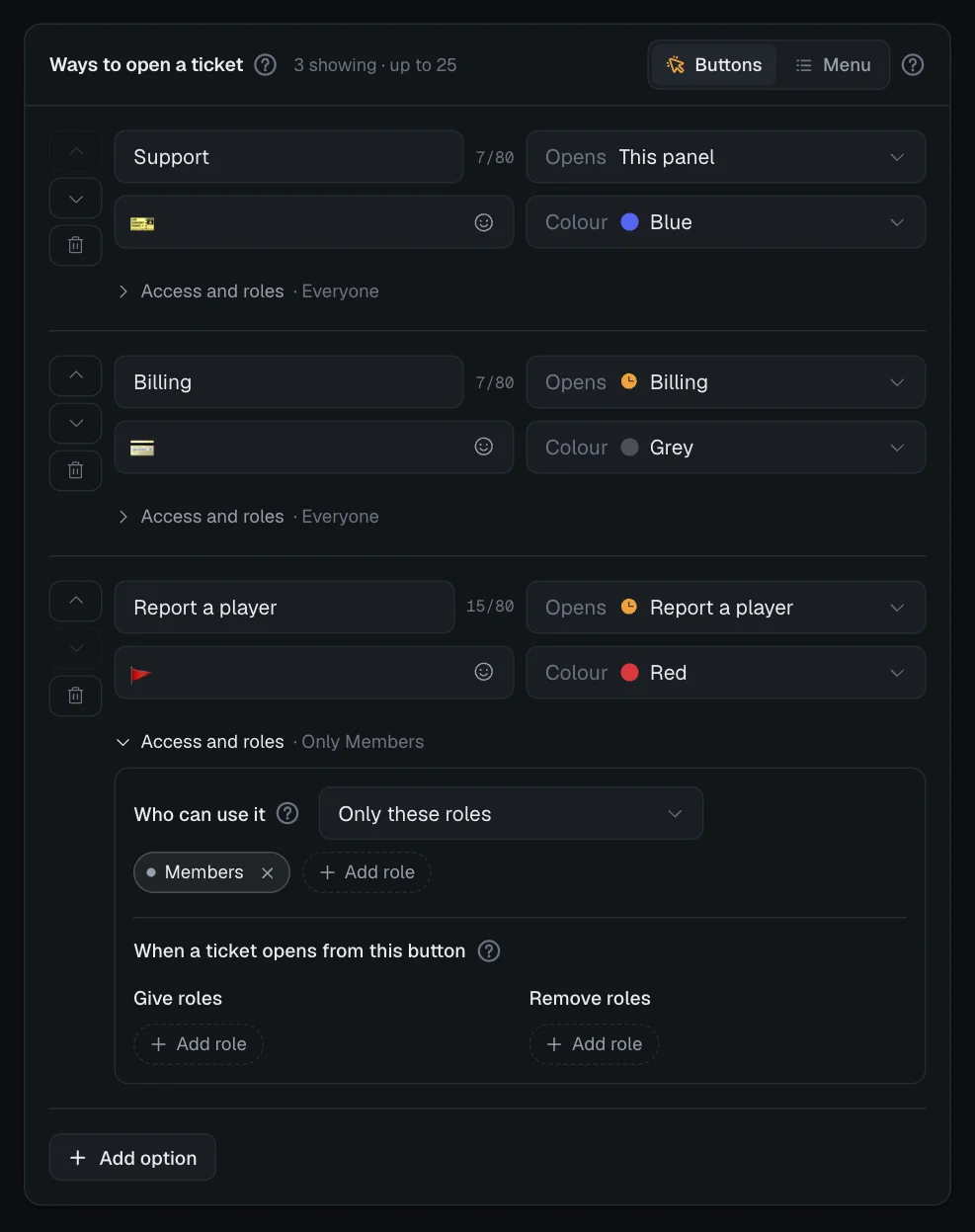
The folded row sums up what is set, so you can read it without opening it: "Everyone", "Only VIP", "Only 2 roles" or "Everyone except Muted", then "gives 1 role" or "removes 2 roles" when the option changes roles. For example: Access and roles · Only VIP · gives 1 role.
#Who can use it
| Choice | Who can open a ticket from this option |
|---|---|
| Everyone | Anyone who can see the panel. The default. |
| Only these roles | Members who hold at least one of the roles you pick. |
| Everyone except these roles | Members who hold none of the roles you pick. With no role picked it means everyone. |
With the last two, pick the roles with Add role, up to 25. What you can rely on:
- The server owner can always use it, and so can Administrators, with two exceptions. An Administrator uses the option like any other member when it hands out a role at or above their own highest role (through its Give roles, or the roles the panel it opens adds to the ticket owner), and in a server that requires 2FA for moderator actions (see Servers that require 2FA). The support team gets no exception: a support role that is not picked is refused like anyone else.
- A refused member gets the Not for their role message. Only they see it, and no ticket or form opens. By default it says "You can't open this kind of ticket". You can reword it under Ticket Messages, on the panel the option is on. The attempt is logged under Blocked member tried in the event log.
- Every option stays visible on the post. Discord cannot hide a button or a menu option from some members, so say in your panel message who each one is for.
- It comes before the opened panel's own rules. Sortr checks it before the channel count, blocked roles, support hours, the cooldown and the ticket limits of the panel the ticket opens in. See the order Sortr checks in.
- It does not apply to
/new. The command never goes through an option. Who may use it is set under Slash commands.
Only these roles with no role picked would let in nobody but admins, so the row opens by itself and says "Pick a role for Only these roles, or choose Everyone. As it is, only admins could use it." Save changes stays off until you pick a role or choose Everyone.
When an option opens another panel, the blocked roles of both panels apply: the panel the post belongs to, and the panel the ticket opens in.
#Roles when a ticket opens
Below Who can use it is When a ticket opens from this button, or from this option when the list is shown as a menu. It has two lists, Give roles and Remove roles, each up to 25 roles. A role cannot be in both.
- The roles are changed on the member the ticket belongs to, once, when the ticket opens. That happens straight after the roles the opened panel sets under When a ticket opens on Who can see it, so the option has the last word where the two disagree.
- They are never handed back. Closing, deleting or reopening the ticket does not undo them. To take a role away again at the close, use When it closes on the opened panel's Who can see it screen.
- A ticket opened with
/newgets no option roles.
Sortr will not give some roles, whatever is picked:
- A role with any moderation power, such as Administrator, Manage Server, Manage Roles, Manage Channels, Manage Messages, Kick, Ban or Timeout, in the server or in even one channel. Picking one under Give roles is refused when you save, for everyone, the server owner included: "has moderation permissions, so Sortr will not give it". Who can see it has the full list. Removing such a role is allowed.
- A support role: a role on the Support team of any panel in this server, a deleted panel's kept settings included, or a role that counts as staff on a ticket Sortr took over from Ticket Tool. Whoever got it could read other members' tickets. Picking one under Give roles is refused when you save, for everyone, with a message that names the role, such as: "Support" is a support role, so whoever gets it could read other members' tickets. Pick a role that isn't one. A role that becomes a support role later is skipped when a ticket opens. Removing one is allowed.
- A role at or above Sortr's own highest role, which Discord does not let a bot give or take. Roles managed by another app are skipped too, and are not offered in the list.
An Administrator who is not the server owner cannot pick a role at or above their own highest role, in either list. The save is refused with "Only roles below your highest role can be picked for Sortr to give or take away". The server owner is not limited.
Nor can such an Administrator let more members reach a role like that once it is on an option, even one the owner set up: opening the option's Who can use it to more members, adding an option that gives it, or pointing an option at a panel that gives it. The save is refused with a message that names the role and the change, such as "Only the server owner can let more members get "VIP Support", because it is above your highest role. This save would do that by letting more members use the "Billing" option." Narrowing Who can use it is always allowed. Who can pick which roles has every rule.
To see what was changed for each ticket, switch on the Role triggers ran event in the event log.
#Emoji on buttons and options
Press the smiley in any emoji box to open the picker. It has every standard emoji by category, a search, and your server's own custom emoji first under This server. You can also paste an emoji into the box. The same rules apply to the emoji on ticket buttons.
- Use one emoji. Two in a row, or an emoji with text, is refused.
- A custom emoji is written
<:name:id>, or<a:name:id>when animated. It only shows if Sortr is in the server it comes from. - Shortcodes such as
:smile:do not work on buttons. Paste the emoji itself. - If the picker's list does not load, it says "The emoji list didn't load. Close this and open it again, or paste an emoji into the box."
Discord refuses a whole message over one bad emoji, so Save changes stays off until every option and every shown ticket button has a valid emoji or none.