DocsAfterwards
Webhooks
Send each ticket event to Zapier, Make, n8n or another app the moment it happens.
A webhook sends each ticket event from a panel to another app as it happens. Use one to post new tickets in a Slack channel, add closed tickets to a spreadsheet or CRM, or start anything else your automation tool can do.
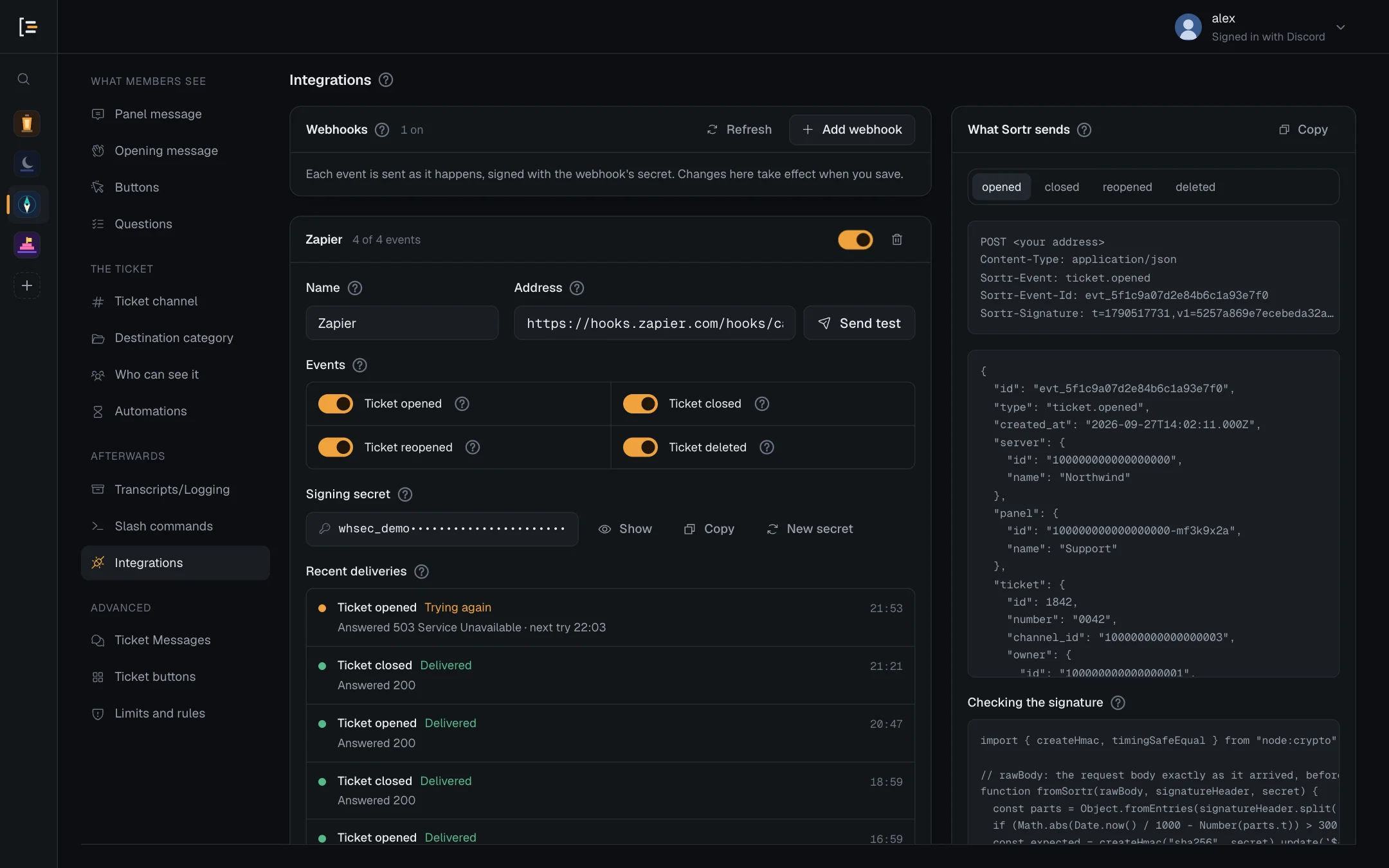
Dashboard › your server › a panel › Integrations
#What a webhook does
Every time a ticket opens, closes, reopens or is deleted, Sortr sends a short message about it to a web address you choose. The message says what happened, which ticket it was, who did it and, for a new ticket, the member's answers to your Questions. The app at that address decides what to do with it.
You don't need to write any code. Automation tools such as Zapier, Make and n8n give you an address to paste into Sortr, then let you choose what happens next. For example:
- post every new ticket in a Slack channel, with the member's answers;
- add a row to a spreadsheet, or a record to your CRM, each time a ticket closes, with the close reason and, when the panel saves transcripts at the close, the transcript link.
When a webhook on the panel sends Ticket opened and the member answered your questions, the opening message ends with a small line telling them: "Your answers are also sent to this server's own tools (a webhook)." See Questions.
Webhooks belong to a panel. A ticket's events go to the webhooks of the panel whose settings it opened with, so if an option on one panel opens tickets with another panel's settings, add the webhook to that other panel. A ticket taken over from Ticket Tool uses the webhooks of the panel it runs on, and none when it runs on Sortr's defaults. Each panel can have up to 5.
If you are a developer building your own receiver, the webhook reference has the exact format, headers and signature check.
#Set up a webhook
- Get an address from the other app. Zapier, Make and n8n give you one when you add a webhook trigger. In Zapier, that is the Catch Hook trigger. Copy the address it shows you. It starts with
https://. - Open Integrations. In the dashboard, pick your server, then the panel, then Integrations in the panel menu, under Afterwards.
- Add a webhook. Press Add webhook. A new webhook appears, switched on, with all four events on.
- Paste the address. Paste it into Address. You can also give it a Name, such as "Zapier", to tell webhooks apart. The name stays in the dashboard: it is not sent with the events.
- Choose the events. Under Events, switch off any you don't want sent. Each event is sent as a separate request.
- Send a test. Press Send test. Sortr sends a test event to the address straight away and shows what came back, for example "It works. Answered 200." You can test before saving. The result goes once you change the address, since it was for the old one.
- Save. Press Save changes at the bottom of the page. Real ticket events are only sent once the webhook is saved.
- Check it works. Open and close a test ticket, then look at Recent deliveries under the webhook. Press Refresh at the top of the Webhooks card to load the latest.
Tip. The test event only proves Sortr can reach the address: it has no ticket in it. If the other app wants a sample to build its steps from, save the webhook, then open and close a test ticket so it receives real events. What Sortr sends, beside the settings, also shows an example of each event.
#The four events
| Event | Sent when | Also carries |
|---|---|---|
| Ticket opened | A ticket opens from this panel. | Who opened it: the member, or the staff member who opened it for them with /new. Also the member's answers to the questions. For a question that takes files, the files' names, sizes and types, not the files themselves. |
| Ticket closed | Staff or the member closes it, or Sortr closes it for inactivity under Automations. | Who closed it, the reason, and the transcript link when a transcript was saved at the close. |
| Ticket reopened | A closed ticket is opened again. | Who reopened it. |
| Ticket deleted | It is deleted through Sortr, by the automatic delete timer, or by deleting the channel in Discord. | Who deleted it, whether it was automatic or done in Discord, and the transcript link when the delete saved a transcript first. |
Every event also names the server, the panel and the ticket: its number, its channel, the member it belongs to, and when it opened and closed.
- The transcript link. Ticket closed has one only when a transcript was saved at the close. A panel whose Save it is set to When the ticket is deleted saves nothing at the close, so its link is always empty there, and Ticket deleted carries the link instead. Ticket deleted has one only when that delete saved a transcript, so it is empty when the copy was already saved at the close, and for a channel deleted in Discord. See Transcripts.
- Deletes. When a delete saves a transcript first, Ticket deleted is sent after that save, a few seconds before the channel goes.
- Blank answers. An optional question the member left blank is sent with an empty answer. So is a file question with nothing attached, with an empty list of files.
#The signing secret
Every webhook has a Signing secret. Sortr signs each event with it, so the app receiving events can check they really came from Sortr and were not changed on the way. Zapier and Make don't need it, so you can leave it alone. It only matters if someone wrote the receiving app themselves.
- Show reveals it and Copy copies it, for whoever needs to check signatures.
- If it ever leaks, press New secret, then Save changes. From that save on, every event is signed with the new secret, including events still waiting to be sent, so give the new one to whatever checks it at the same time.
- Sortr stores every webhook's address and signing secret encrypted. Addresses from apps like Zapier work as passwords in their own right, so neither is kept in plain text.
#Recent deliveries
Under each webhook, Recent deliveries lists the last ten events sent to it, newest first, with the time and how the address answered. Tests are not listed.
| Status | What it means |
|---|---|
| Sending | The event is going out now. |
| Waiting | The event is queued behind earlier events for this address, and goes out after them. |
| Delivered | The address accepted the event. The line shows its answer, such as "Answered 200". |
| Trying again | The address did not accept it yet. The line says what went wrong and when Sortr tries next. |
| Failed | Sortr gave up on this event. The line says why: a day of trying without success, an address Sortr can never send to as it is, 500 earlier events already waiting for this address, or 2,000 already waiting for the whole server. |
| Not sent | The webhook was switched off or removed, that event was switched off, or Sortr left the server, before the event went out. |
Common reasons in the list are an error from the other app ("Answered 404." or "Answered 500."), "No answer within 10 seconds." and "That address could not be found." Delivery records are kept for 7 days.
#When an address doesn't answer
An event counts as delivered when the address answers with success within 10 seconds. Anything else is a failure, and Sortr tries again after 30 seconds, then after 1, 2, 4, 8, 16 and 32 minutes, then once an hour. When a try fails and the event is more than a day old, Sortr gives up and marks it Failed.
Events for one webhook arrive in the order they happened. While one event is failing, every later event for the same webhook waits behind it, including new ones, so the other app is not flooded while it is down and never hears of a close before the open it follows.
If 500 events are already waiting for one webhook, newer ones are not sent. Each shows in Recent deliveries as Failed, with the line "Not sent: 500 earlier events are still waiting for this address." The same goes for the whole server once 2,000 events are waiting across all its webhooks: "Not sent: this server already has 2,000 events waiting to be sent."
Servers take turns. Each round of sending takes at most 3 events for one webhook and 5 for one server, and the next round starts with the servers left out of this one, so a busy server or a slow app does not hold up anyone else's events. An address that takes longer than 5 seconds to answer still counts as delivered, but that webhook's next events wait 30 seconds before they go out. Apps that answer quickly are not slowed down.
The same event can occasionally arrive twice, for example when the other app received it but its answer did not reach Sortr in time. Each event has an id, so the app can spot a repeat.
When you change a webhook's Address or secret, or switch it back on, and save, Sortr sends whatever is waiting for it within a few seconds instead of waiting out the pause.
When Sortr is removed from the server, or the people who run Sortr block the server, nothing more is sent. Events still waiting are dropped within about a minute, with what they would have sent. If Sortr is added back, new events go out as before.
#Rules for addresses
- The address must start with
https://and be on the public internet. Addresses on a private network are refused, and so are addresses that lead to Sortr's own server at sortr.xyz: "That address is on a private network. Sortr only sends to public addresses." - Take any name and password out of the address. Sortr signs every event instead.
- Two switched-on webhooks on one panel can't send to the same address.
- Sortr does not follow redirects. If the app answers with one, paste the final address.
- A switched-on webhook needs at least one event.
Good to know. Any address on Discord is refused, Discord webhook links included: "Discord can't take Sortr's events. To post them in a channel, use the Event log under Transcripts/Logging." Sortr sends its events as data for other apps to read, not as Discord messages. To post ticket events in a Discord channel, use the Event log instead.
#Switch off or remove a webhook
The switch beside a webhook's name turns it off and keeps its settings for later. The bin button removes it. Either way, press Save changes. Events still waiting for it are not sent, and a switched-off webhook lists them as Not sent.
When you delete a panel that has webhooks switched on, the window asks whether the tickets it leaves behind should keep sending them: Keep sending its webhooks for the tickets it leaves behind. Left unticked, as it starts, they stop at once, and their addresses and signing secrets are deleted. Ticked, they keep sending until the last of those tickets is deleted, and the event log names the sites they send to in an Integrations changed entry.
A deleted panel's webhooks no longer show under any panel, so the server page lists them in a card of their own, Deleted panels still sending webhooks, below Customize bot. It only appears while there are any. Each row gives the panel's name, "Sends to" and the sites, and how many tickets are left. Stop removes those webhooks for good and drops any events still waiting for them; the event log records it. There is no way to switch them back on.
#Who a webhook answers to
Sortr remembers who connected each webhook: whoever added it, last changed its Address, or switched it back on. If that person loses the Administrator permission in the server, or leaves it, Sortr switches the webhook off, so a former admin's app does not go on receiving your tickets. This covers every panel in the server, and the webhooks kept for deleted panels. The server owner's webhooks are not switched off this way while they own the server. If the owner hands the server to someone else and does not keep the Administrator permission, what they connected is switched off like anyone else's.
Each time, the event log gets an Integrations paused entry, which is always on. It names the person, why, and the sites that stopped. To keep a webhook sending, switch it back on and save: you then become the person it answers to. A webhook kept for a deleted panel stays off.
A switched-on webhook that nobody has added, re-pointed or switched on since Sortr began keeping this record has no one recorded, so nobody answers for it. Sortr checks every hour and switches such a webhook off, with an Integrations paused entry that says "Sortr has no record of who connected these, so they are switched off". Switch it back on and save to keep it sending; one kept for a deleted panel stays off. The dashboard does not show who is recorded. The Integrations changed entries in your log say who set up or changed each one.
Because a webhook you switch on answers to you, a save that adds one, changes its Address or switches it back on first asks Discord whether you are still the owner or an Administrator. See The dashboard for what the save bar says when you are not.
#Copying panels
Webhooks stay behind when you copy a panel with Copy to other servers: a new copy starts without any, and updating an earlier copy keeps the webhooks it already has. Duplicate in this server is a full copy, so the new panel gets the same webhooks, with the same addresses and secrets, until you change them. See Copy panels.