DocsWhat members see
Opening message
Write the first message Sortr posts inside every new ticket, with the Close button under it, and choose who it pings.
The opening message is the first message inside every new ticket. Sortr posts it the moment the channel is created, with the Close button under it. It greets the member, tells your staff a ticket is waiting, and can show the answers the member gave.
Dashboard › your server › a panel › Opening message
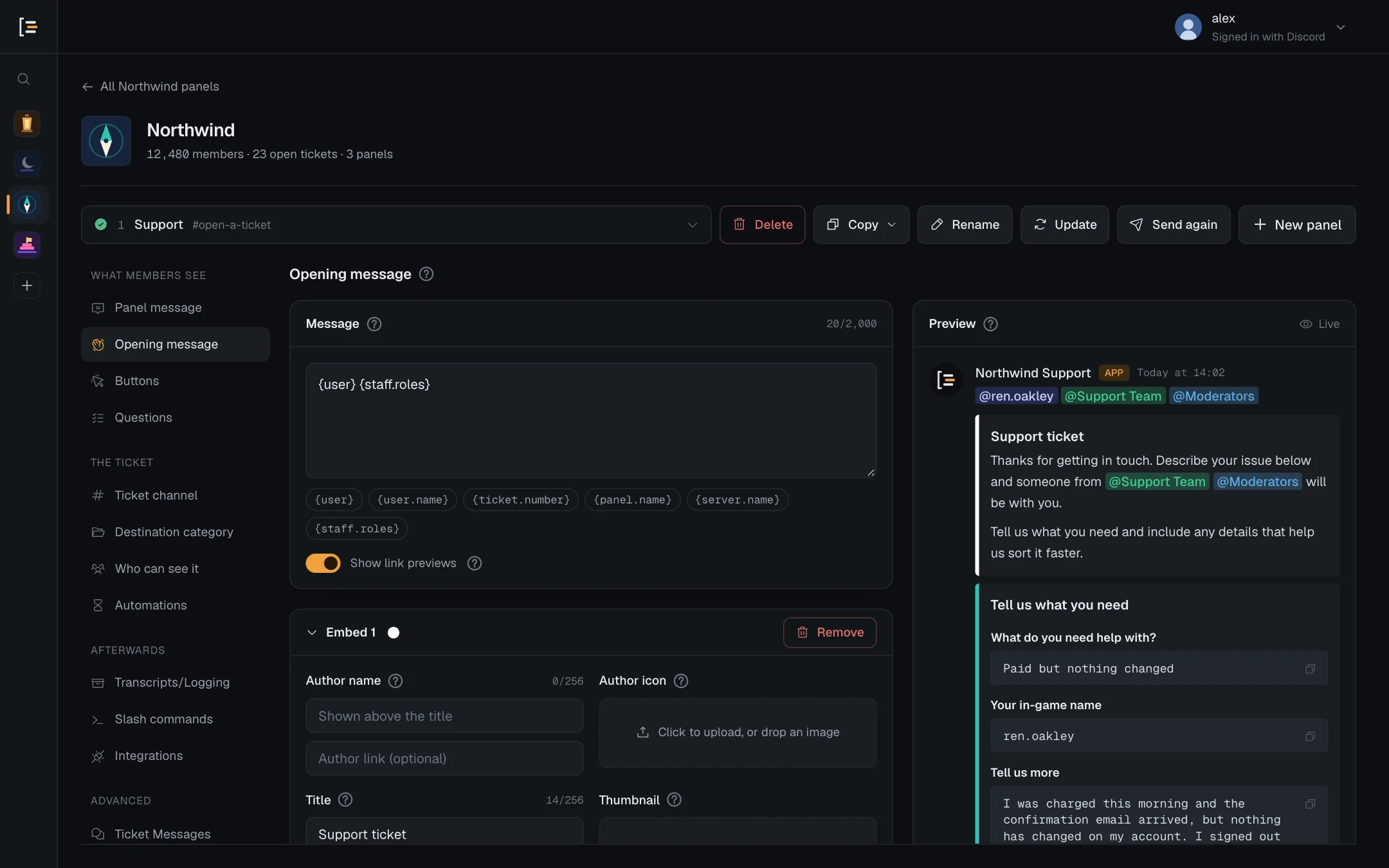
#What a new panel says
A new panel starts with one line of text that mentions the member and the support roles, and one embed. For a member called ren.oakley and a panel with a Support role, the ticket starts like this:
The text line is {user} {staff.roles}. If the panel has no support roles yet, {staff.roles} reads "the support team". The embed is white.
Each panel has its own opening message. A ticket gets the message of the panel it opens with, so an option that opens another panel uses that panel's message. Sortr pins the message unless you switch off Pin the opening message under Ticket channel. The Close button under it is set under Ticket buttons.
#Edit the message
- Open the panel. In the dashboard, pick your server, then the panel.
- Go to Opening message. It is in the left menu under What members see, below Panel message.
- Write the text. The Message box is plain text above the embeds, up to 2,000 characters. Type @ to mention a role or a member, or # for a channel (see Formatting). Mentions in it can ping, see below. Leave it empty to send embeds only.
- Add variables. Press a variable under the box and it is added to the end of the text.
- Edit the embeds. They have the same parts as on Panel message. Press Add embed for another one, up to 10, or 4 while the form's answers are shown in the ticket.
- Check the preview, then save. Press Save changes. Tickets opened from then on get the new message. Tickets that are already open keep the one they were given.
Bold, headings, links and emoji work as in every other message. See Formatting. Save changes stays off while the message has no text and no embed content (a footer on its own, text that is only spaces, and a field without both a name and a value do not count), with "The opening message is empty. Discord refuses a message with no text and no embed.", or while its embeds add up to more than 6,000 characters.
#Variables you can use here
Variables are words in braces that Sortr replaces when the ticket opens. These are offered under the Message box and under each embed's Description:
| Variable | Becomes |
|---|---|
{user} | A mention of the member the ticket belongs to. |
{user.name} | The name they go by in your server, as plain text. |
{ticket.number} | The ticket number, such as 0042. |
{panel.name} | The name of the panel the ticket opened with. |
{server.name} | Your server's name. |
{staff.roles} | A mention of each support role on the panel, or "the support team" when there are none. |
The opening message is also the only message that can print form answers: {create.form.1} for the first question, up to {create.form.5}. Copy one from its question on Questions and paste it here. An optional question left blank prints "No answer". A question that takes files prints the files' names, separated by commas, or "No answer" when none were attached. A member's name and answers are shown exactly as typed: a mention in them never pings, and a link written as [text](address) shows as typed instead of becoming a link. The full list of variables is on Variables.
#Who gets pinged
Mentions in the Message text ping, which is usually what you want here: the member finds their ticket and your staff see it arrive. The opening message can ping two things only:
- the member the ticket belongs to, through
{user}; - the panel's support roles, through
{staff.roles}or a role mention you type. These are the roles under Support team on Who can see it.
Any other role, any other member (such as one you picked by name from the @ list), @everyone and @here show in the message but ping nobody. Mentions inside an embed never ping anyone. So to open tickets without pinging your staff, take {staff.roles} out of the Message text and keep it in the embed. Formatting compares this with the other messages.
#Form answers in the message
When the panel asks Questions and Show answers in the ticket is on, the answers ride along with the opening message as one more embed under yours. It carries the form's title and one block per question. A very long answer may be shortened there, and Sortr still stores it in full. A question that takes files reads "2 files attached" with the files' names, or "No files", and Sortr posts the files themselves in the ticket, under the opening message, in a message of their own for each such question.
When the answers also go to the panel's Google Sheet or a webhook, Sortr adds a small line under your message text: "Your answers are also sent to this server's own tools (a Google Sheet)." It can't be switched off, and the preview doesn't show it. See Questions.
Its colour is set in the Form answers card, under this message's embeds. Answers colour works like an embed's colour: it starts as White, a dot picks one of your server icon's own colours, and you can type any hex code. The preview shows the answers with sample text in that colour.
#Four embeds while the answers are shown
While Enable form and Show answers in the ticket are both on under Questions, the opening message can hold at most 4 embeds instead of 10. The answers need the room, and Discord limits how much one message can carry. With either switch off, no answers are added to this message, and it can hold up to 10.
- A counter beside Add embed shows how many you have, such as "2 of 4 embeds". Pressing Add embed at the limit shows "4 embeds while the answers are shown" and adds nothing.
- On Questions, neither switch will turn the answers on while this message has more than 4 embeds. Enable form says "Too many embeds for the form", and Show answers in the ticket says "Too many embeds for the answers". Remove the extra ones here first.
- To use more than 4, switch off Show answers in the ticket, or the form, under Questions.
Whatever the message holds, Sortr never sends more than the 10 embeds Discord allows on one message. When it adds the answers, it sends at most the first 9 of your embeds, so the answers always fit.
#The live preview
The Preview redraws as you type. It uses your real server name, panel name and support roles. The other variables show example values, such as @ren.oakley and ticket 0042. In a real ticket they become the real member and number.
Under the message, the preview shows the Close button as it is set under Ticket buttons: its text, emoji and colour. If the button is hidden there, the preview shows no button, and neither does the ticket.
While Enable form and Show answers in the ticket are both on under Questions, the preview also draws the answers embed under yours, with the form's title, one block per question and sample answers, in the Answers colour. With either switch off it is left out, as it is in the ticket, and the Form answers card says "Not shown right now: switch on the form and Show answers in the ticket under Questions. The colour is kept for when they are." The preview on Questions shows the same message after you press Submit.
#Reset to default
Reset to default, under the editor, puts back the message a new panel starts with, shown at the top of this page. Like any edit, it only counts once you press Save changes. Press Discard instead if you change your mind.
It resets this message only. The Close button and the messages under Ticket Messages are left alone, and Reset every bot message on that screen does not touch the opening message.
#Panels opened from another panel
A panel that members only reach through another panel's button or menu option is never posted itself, so it has no Panel message section. Its editor opens here, on Opening message, because this is the first thing its members read. See Make a new panel from an option.
Good to know. If Discord refuses your opening message when a ticket opens, Sortr posts a plain line in its place that mentions the member, "Your ticket is open. The support team can see your ticket here.", with the Close button in its default look, so the ticket can still be closed. If Close is hidden under Ticket buttons, the plain line has no button either. The event log records it under Something went wrong.