DocsAdvanced
Ticket Messages
Every other message Sortr sends for a panel, from the close prompt to the replies when a ticket cannot open, and how to reword or switch them off.
Besides the opening message, Sortr sends a set of smaller messages around every ticket: the prompt before closing, the notice once it closes, the refusals when someone cannot open one. Each panel has its own copy of all of them, and you can rewrite any of them in your own words. The first message in a new ticket has its own screen, Opening message.
Dashboard › your server › a panel › Ticket Messages
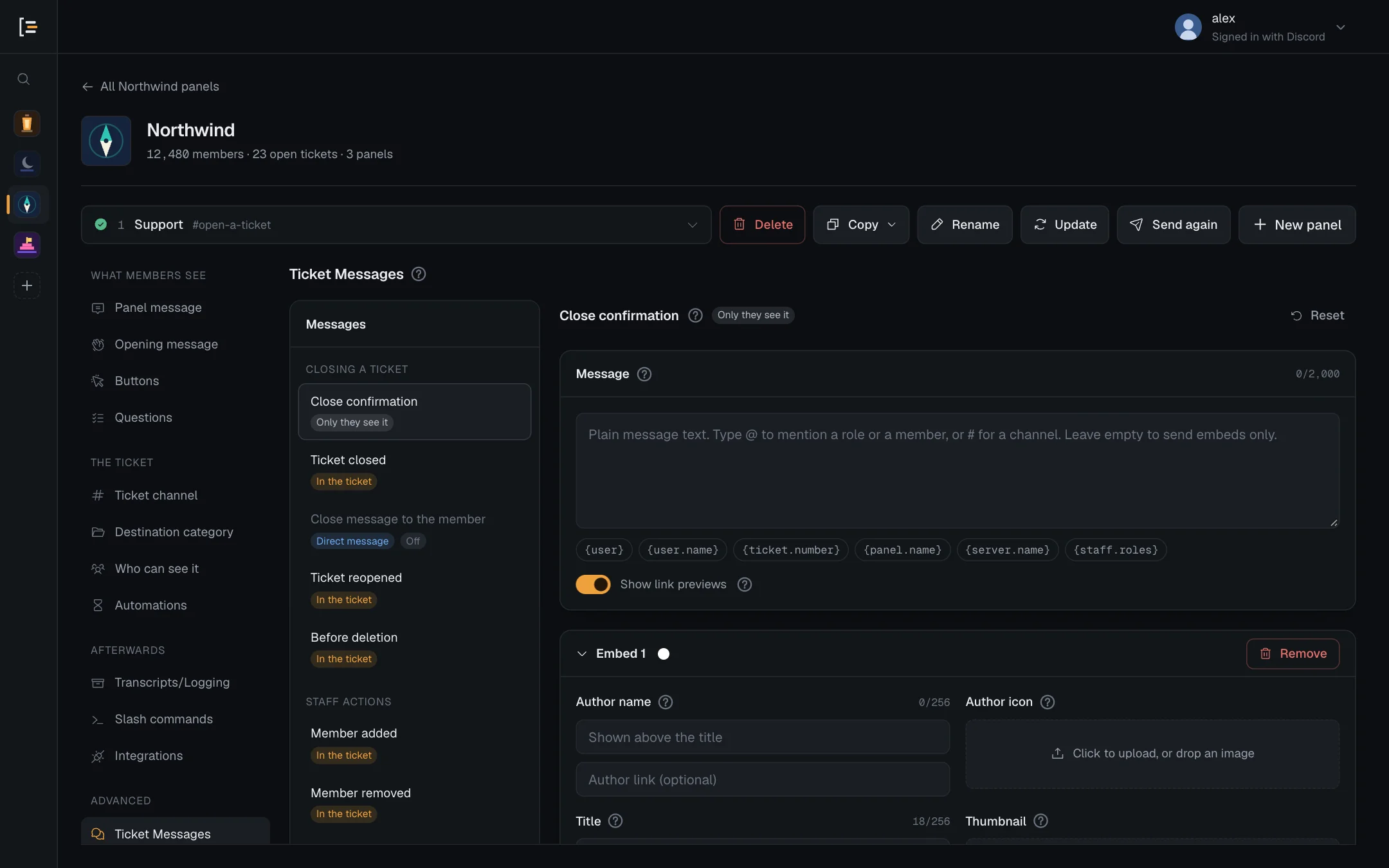
#Every message
The list on the screen is grouped like this. The tag under each name says who sees it: In the ticket, Direct message, Only they see it or Log channel.
| Message | When Sortr sends it | Who sees it | Can be switched off |
|---|---|---|---|
| Closing a ticket | |||
| Close confirmation | Someone presses Close. Asks them to confirm, with Close ticket and Cancel buttons. /close skips it. | Only they see it | No |
| Ticket closed | The ticket has closed. Carries the Reopen, Transcript and Delete buttons. | In the ticket | No |
| Close message to the member | Sent to the ticket owner when their ticket closes. | Direct message | Yes, off to start with |
| Ticket reopened | A closed ticket is reopened. Pings the ticket owner. | In the ticket | Yes, on to start with |
| Before deletion | Someone confirms Delete, or Automations deletes a closed ticket. The last notice before the channel goes. | In the ticket | Yes, on to start with |
| Staff actions | |||
| Member added | Someone is added with /add. Can ping the person added, see Who gets pinged. | In the ticket | Yes, on to start with |
| Member removed | Someone is removed with /remove. | In the ticket | Yes, on to start with |
| When a ticket cannot open | |||
| Open ticket limit reached | They already have as many tickets open as the panel allows each member. | Only they see it | No |
| Panel is full | The panel already has as many tickets open, from all members together, as its limit allows. | Only they see it | No |
| Closed ticket limit reached | Closed tickets that have not been deleted yet have reached the panel's limit. | Only they see it | No |
| Opening too quickly | Their cooldown has not run out yet. | Only they see it | No |
| Blocked from opening tickets | They have a role blocked under Limits and rules. | Only they see it | No |
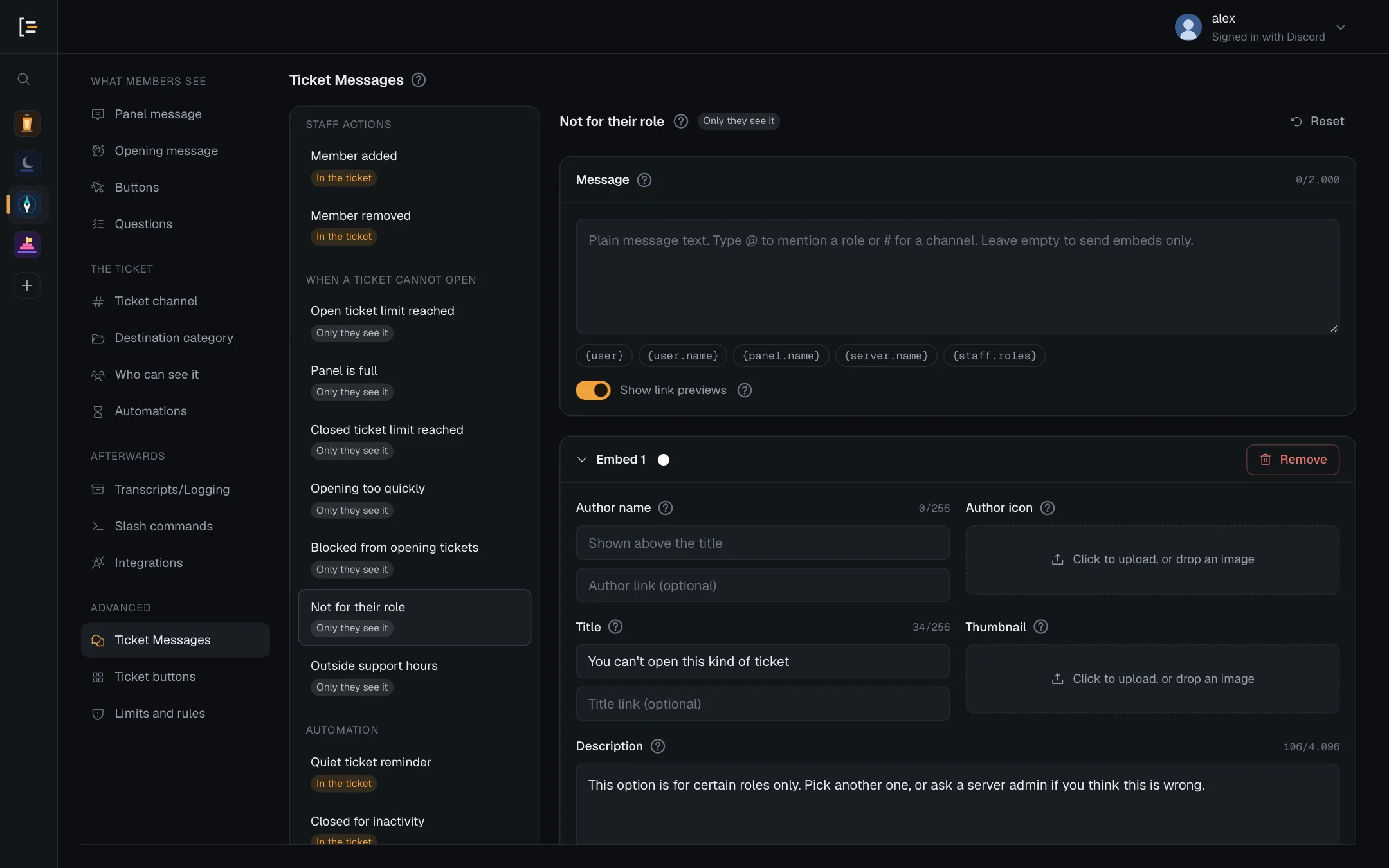
| Not for their role | The button or menu option they picked is limited to certain roles under Buttons, and they are not among them. | Only they see it | No |
| Outside support hours | It is outside the panel's support hours. | Only they see it | No |
| Automation | |||
| Quiet ticket reminder | A ticket has gone quiet. A silent ping for the roles picked under Automations. The member is never pinged by it. | In the ticket | Set under Automations |
| Closed for inactivity | Automations closes a quiet ticket. Posted instead of Ticket closed, with the same buttons. | In the ticket | No |
| Transcript log entry | A transcript is saved. Posted with the file in your transcript channel, and in the owner's DMs when that is on. | Log channel | Set under Transcripts |
The seven refusals show when a member presses a panel button, picks from the menu, or sends the form. Short replies such as "Ticket 0042 opened", the answers to commands, the prompt that asks before a delete, and the refusal when a server is close to Discord's 500 channel limit are fixed, and are not in this list.
#Not for their role
This is the reply a member gets when an option's Who can use it is set to certain roles and they do not qualify. Only they see it, no ticket or form opens, and it cannot be switched off. Out of the box it reads:
Sortr uses the wording of the panel the option is on, which is the panel whose post was pressed, not the panel the option opens. Reword it there.
#Switch a message off
Five messages can be switched off: Close message to the member, Ticket reopened, Before deletion, Member added and Member removed. Pick one in the list and use the switch beside its name, which reads Sent or Not sent. A message that is switched off shows Off in the list.
Switching a message off only skips that message. The rest carries on: the ticket still reopens, the channel is still deleted. The other messages are part of a flow, like the Ticket closed notice that carries the Reopen button, so they are always sent.
#Edit a message
- Open the panel. In the dashboard, pick your server, then the panel.
- Go to Ticket Messages. It is in the left menu under Advanced. It opens on Close confirmation.
- Pick a message. The list has every message. The ? beside its name says when it is sent.
- Edit it. This is the same editor as the panel message: text above any embeds, with a live preview beside it.
- Save. Press Save changes. Messages Sortr sends from then on use the new wording. Messages already posted do not change.
A message can have up to 2,000 characters of text and up to 10 embeds, with 6,000 characters of embed text in total. See Formatting for bold, links and mentions.
The Ticket closed notice as it comes out of the box. The buttons under Sortr's messages are set under Ticket buttons.
#Who gets pinged
On this screen, mentions ping people in three messages only: Ticket reopened pings the ticket owner, Member added pings the person added, and the Quiet ticket reminder silently mentions the roles picked under Automations. In the other messages here, mentions show as names but ping nobody. As in every message, only a mention in the Message text pings, never one inside an embed. Out of the box, Ticket reopened and Member added both have {user} as their Message text, so the person they are for is pinged and finds the channel. A member you mention by picking them from the @ list (type @ and two letters of their name) shows as a mention, and is pinged only if they are that person. The opening message has its own rule, and Formatting has the details.
#Variables
Variables are words in braces that Sortr replaces when it sends the message. Click one under a field to add it. {user}, {user.name}, {panel.name}, {server.name} and {staff.roles} work in every message. {ticket.number} works in every message except the refusals, which are sent before a ticket exists. Some messages can fill extra ones:
| Message | Extra variables |
|---|---|
| Ticket closed, Closed for inactivity | {staff}, {staff.name}, {reason}, {ticket.duration}, {transcript.link} |
| Close message to the member | {staff.name}, {reason}, {transcript.link}, {ticket.duration} |
| Ticket reopened, Member added, Member removed | {staff}, {staff.name} |
| Before deletion | {staff}, {delay} (the time until the channel is deleted, such as 8 seconds), {transcript.link} |
| Open ticket limit reached, Panel is full, Closed ticket limit reached | {limit} |
| Opening too quickly | {delay} (how long until they can open another) |
| Quiet ticket reminder | {ping.roles}, {ticket.quiet}, {delay} (how long until Sortr closes it, empty while Automatic close is off) |
| Transcript log entry | {staff}, {staff.name}, {reason}, {transcript.link}, {ticket.duration}, {ticket.opened}, {user.username}, {user.avatar}, {ticket.channel}, {transcript.users}, {transcript.direct} |
Rest the pointer on a variable under a field to see what it holds in that message. The variables for answers to Questions only work in the opening message.
Things worth knowing:
- In Close confirmation,
{user}is whoever pressed Close. In Member added and Member removed,{user}is the person added or removed, and{staff}is who did it. When Sortr closes a ticket on its own,{staff}is Sortr. {reason}holds the reason typed with/close, which can be up to 500 characters. The Close button has no reason box, so after a button close it reads "no reason given". After an automatic close it says how long the ticket was quiet, such as "No activity for 2 days".- In Ticket closed, Closed for inactivity and Close message to the member,
{transcript.link}leads to the copy on the Sortr site when one is kept, otherwise to the Discord post with the file. Ticket closed and Closed for inactivity are posted before the transcript is saved, and Sortr edits the link into them a moment later. A ticket Sortr took over from Ticket Tool is not posted in a transcript channel that people outside its roles can see: its copy is kept on the Sortr site instead, even when Keep a copy here is off, and the link leads there. It is empty when the panel saves transcripts when the ticket is deleted, because nothing has been saved yet at the close, and when the panel keeps no transcripts at all. - In Before deletion,
{transcript.link}is filled when that delete saved a transcript: on a panel that saves when the ticket is deleted, or for a ticket with no copy since its last close. Otherwise it is empty. - In the Transcript log entry,
{transcript.link}is the site link. Wherever there is nothing to link to, a link written as[text]({transcript.link})is left out entirely. - A member's name and a close reason are shown exactly as typed. A name that looks like a variable or a mention is printed as plain text and never pings, and a link written as
[text](address)shows as typed instead of becoming a link.
The full list, with examples, is on Variables.
#Reset to the default
- Reset, beside a message's name, puts that one message back to Sortr's default wording. Its Sent switch stays as it is.
- Reset every bot message, under the editor, does the same for every message in this list. The switches stay as they are.
Neither touches the opening message. It has its own Reset to default on the Opening message screen.
Nothing changes for your members until you press Save changes. If you change your mind first, press Discard instead.