DocsGuides
Use the same setup on several servers
Set Sortr up in one server, copy its panels to the other servers you run, keep the copies up to date, and give the bot its own name and picture in each server.
If you run more than one server, you only need to set Sortr up once. Copy the finished panels to your other servers, send them there, and copy again whenever you change the original. Each server can still show Sortr with its own name, picture and banner.
#You will need
- To be the owner, or have the Administrator permission, in every server involved.
- Sortr added to each of those servers. See Add Sortr.
- One server where the panels are set up and tested. This guide calls it the original.
#Get the names ready
A panel points at roles, channels and categories, and those are different in every server. Sortr matches them by name: the role called Support in the original becomes the role called Support in the copy. It looks for the exact name first, then for the same name in different capitals.
- Note what the panel uses. Its roles under Who can see it, its categories under Destination category, and the log and transcript channels under Transcripts/Logging. Then any other roles it names: in each option's Access and roles under Buttons (who can use it, and the roles it gives or removes), under Who can use it for each of the Slash commands, in Allowed roles and Blocked roles under Ticket buttons, and under Limits and rules and Automations.
- Create them in the other servers with the same names. Anything without a match is left out of the copy, and you would pick it by hand afterwards. Two things can stop the copy: an option set to Only these roles needs at least one of its roles in the other server, and a role Sortr would give or take away has to pass the same rules there as in a save. Copy panels explains both.
#Copy the panel
- Open the panel you post. If its buttons open other panels, copy this one: the panels it opens come along with it.
- Press Copy, then Copy to other servers. Copy is on the panel row, beside the panel picker. Any unsaved changes are saved first, because the copy takes what is saved.
- Pick the servers. Tick each one, or tick the box that reads, for example, All 3 servers with Sortr. Servers without Sortr are listed separately and cannot take a copy.
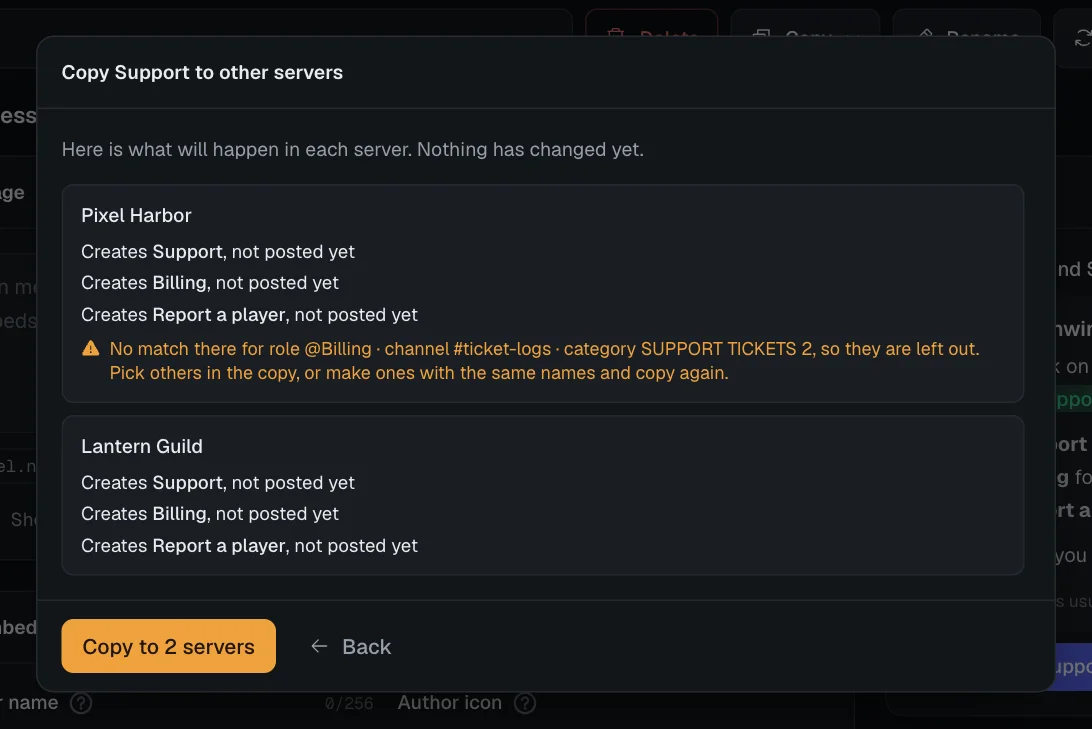
- Press Check. Nothing changes yet. For each server you see what will happen, such as Creates Support, not posted yet, and any role, channel or category with no match there, which will be left out. A server that cannot take the copy says why and is skipped. A server can hold up to 25 panels.
- Copy. Press the button that names the server, or reads Copy to 3 servers with your own number, then Done. Before you close it, each copied panel has an Open link.
- Send it in each server. A new copy is not posted. Open it, check Who can see it and Destination category for anything that was left out, then press Send panel. If a category or channel it uses there is private, let Sortr's role into it: the warning "Sortr can't reach everything your panels use." on that server's page names each one Sortr cannot use.
You can also start from the other end. In the server that needs the panel, press Copy from another server above its list of panels, pick a panel, press Next to see the same check, then press Copy into that server.
#What is not copied
| What | Why, and what to do |
|---|---|
| Google Sheet link | A spreadsheet can only be connected to one server, so each copy needs a sheet of its own. Set one on each copy under Questions. |
| Webhooks | Each one has its own signing secret. Add them on each copy under Integrations. |
| Roles, channels and categories with no match | Left out. A mention of one typed into a message becomes plain text, such as @Support. |
| Tickets and transcripts | They stay in their own server, and each server counts its own ticket numbers. |
| Sortr's name, picture and banner | Set per server, as below. |
#Update the copies later
- Change the original. Edit the panel in the original server and press Save changes.
- Copy it again. Press Copy, then Copy to other servers, pick the same servers and press Check. This time each one says Updates Support, the earlier copy, and its post. The words "and its post" only appear for a copy that has been sent. If you added a support role and a copy already has tickets, the check warns that those tickets will not get it, for example "Its 12 tickets already there will not get @Moderators. Only tickets opened after the copy will."
- Copy. Sortr updates each copy in place and rewrites its post in Discord, so there is nothing to send again.
Careful. Updating a copy replaces any changes made to it in that server with the original's settings, including the panel's name. Only its Google Sheet link and webhooks are kept. Make changes in the original and copy them out from there.
#Give each server its own look
How Sortr looks is set per server, not per panel, so copying never touches it.
- Open the server. In the dashboard, pick the server. The Customize bot card is the first thing on its page, above the list of panels.
- Set the name. Under Display name, type up to 32 characters and press Save. Members of that server see the name on Sortr's messages and in the member list.
- Upload a picture. Under Profile picture, press Upload and choose an image, at least 128 × 128: PNG, JPEG, GIF or WebP. A window opens to frame it: drag it into the circle, zoom with the slider, and press Apply. Banner works the same way, with a wide 5 : 2 frame. The image is saved as soon as you apply the frame.
- Check the preview. It shows the name, picture and banner as Discord will. Only this server sees them, and Use default puts Sortr's own back. Discord allows only a few changes every few minutes.
A copied panel keeps its embed colours in every server it lands in. An embed still on the old server colour, from a panel made before 8 October 2026, arrives with the colour it shows in the server it was copied from.
#Try it
- Open a copy. In another server, open the copied panel and look at Who can see it and Destination category. The roles and categories there are that server's own.
- Send it and open a ticket. The ticket lands in that server's category, visible to that server's support role.
- Update it. Change a word in the original's panel message, save, copy it again, and watch the post in the other server change.
#Related
- Copy panels: every detail of copying, in both directions.
- Panels: creating, sending and updating panels.
- Customize bot: Sortr's name, picture and banner in one server.
- Google Sheets and Webhooks: the two settings to redo on each copy.