DocsWhat members see
Panel message
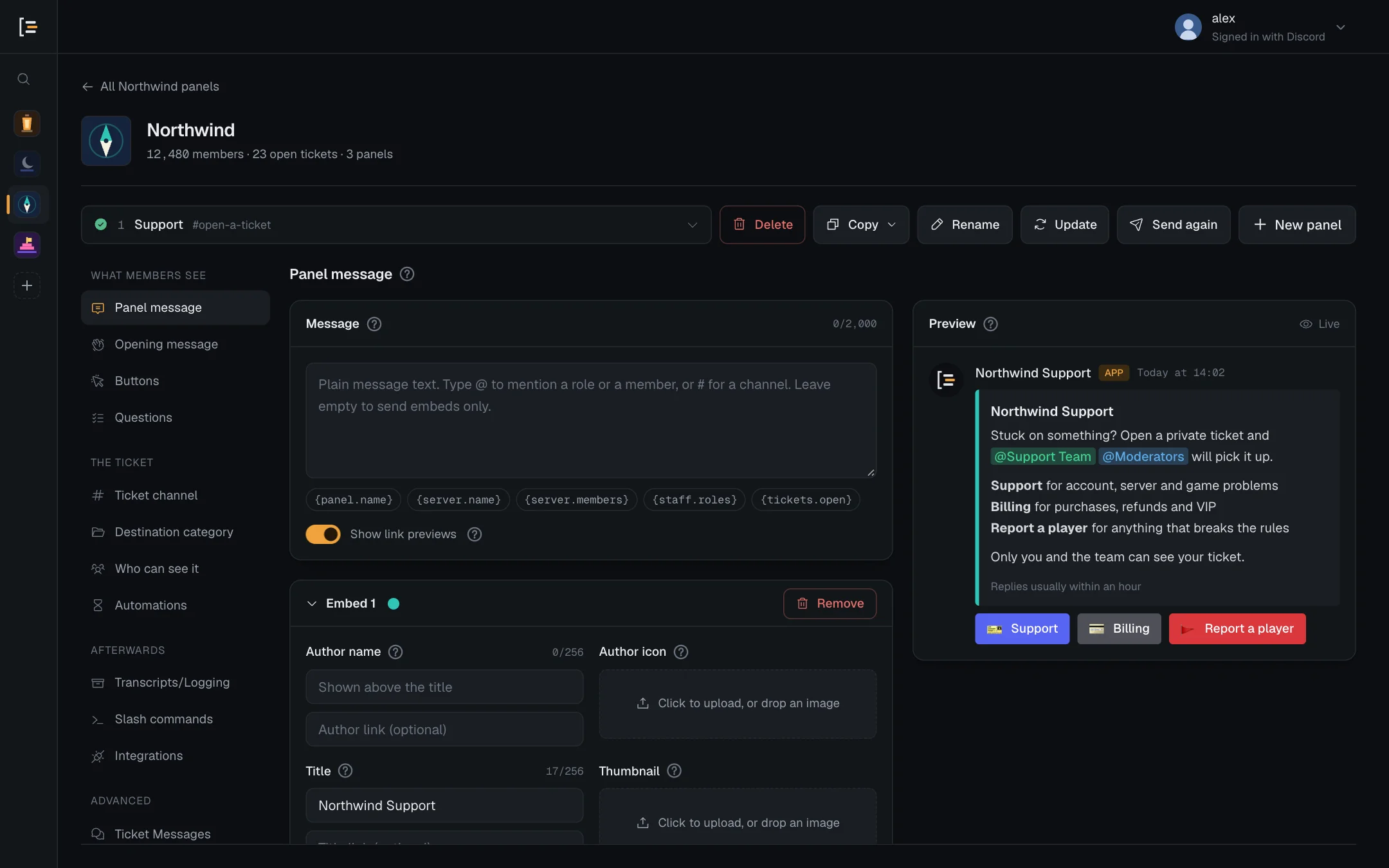
Write the public post members press to open a ticket, with text, embeds, images and a live preview.
The panel message is the public post Sortr puts in a channel for you. Members read it, then press a button or pick from a menu under it to open a ticket. This screen decides what the post says and how it looks.
Dashboard › your server › a panel › Panel message
#What a new panel says
A new panel starts with one embed: the panel's name as the title, a short line saying who will answer, and one Open ticket button under it. For a panel called Support with a Support role, members see this:
If the panel has no support roles yet, the sentence reads "with the support team" instead. The button or menu under the post is set on the Buttons screen, not here.
Good to know. A panel that members only reach through another panel's option, and that has no post of its own, has no Panel message section. Nobody would ever see its message, so its editor opens at Opening message. See Panels opened from another panel.
#Write the message
The editor has two parts, and you can use either or both:
- Message: plain text that sits above the embeds, up to 2,000 characters. Leave it empty to send embeds only. The Show link previews switch under it, on to start, decides whether Discord adds a preview card for each link in this text (see Formatting).
- Embeds: the boxed cards with a coloured bar down the left edge. Press Add embed for another one, up to Discord's limit of 10. Each embed has a Remove button, and you can fold one away by pressing its heading, such as Embed 1.
Markdown such as **bold** and ### headings works in the text and in the description. See Formatting for everything you can do with text, links, mentions and emoji.
#The parts of an embed
Every part is optional, but an embed needs something in it (a title, description, author name, image, thumbnail, or a field with both a name and a value), or it is left out. Text that is only spaces counts as nothing, a footer on its own is not enough, and the date and time count only with something else. If the whole message would be sent blank, Save changes is blocked with "The panel message is empty. Discord refuses a message with no text and no embed."
| Setting | What it does | Limit |
|---|---|---|
| Author name | Small text above the title. Add an author link under it to make it clickable: a whole web address starting with https:// or http://. Anything else stops the save, and the save bar names it. | 256 characters |
| Author icon | A small round image beside the author name. Without an author name it is left out. | Image upload |
| Title | The bold heading. Add a title link to make it clickable, with the same rule as the author link. | 256 characters |
| Thumbnail | A small image in the top right corner. | Image upload |
| Description | The main text. Type @ to mention a role or a member, or # for a channel. | 4,096 characters |
| Fields | Short labelled blocks under the description, each with a name and a value. Turn on Inline to put up to three side by side, or two beside a thumbnail. | 25 per embed. Name 256, value 1,024 |
| Colour | The bar down the left edge. See below. | |
| Image | A large image across the bottom. | Image upload |
| Footer text | Small text at the very bottom. | 2,048 characters |
| Date and time | Adds when the message was sent to the footer, shown in each reader's own time zone. | Off |
| Footer icon | A small round image beside the footer text. | Image upload |
Discord also caps the text of all embeds on one message at 6,000 characters added together. The Embed text counter under the embeds keeps the running total, and Save changes is blocked while it is over.
#Colour
New embeds are white. Next to White are dots with your server icon's own colours, most dominant first. Picking one fixes that exact colour, so it stays even if the icon changes. You can also pick any colour with the colour picker, or type a hex code such as #5865f2. More in Embed colours.
#Images
Press an image box to upload a picture, or drop one on it. Images must be PNG, JPEG, GIF or WebP, under 8 MB each. A big picture is made smaller in your browser first, to at most 2560 pixels on its longer side: it looks the same in Discord, and the panel sends faster. GIFs and other animated images go as they are. Sortr stores the file and attaches it to the post, so it does not depend on a link staying online. Each server can keep up to 100 images or 200 MB in total, and each Discord account up to 300 MB across all the servers it uploads to, or 40 MB for a Discord account made less than 30 days ago. Images that no panel in their server uses any more are deleted automatically, at the earliest three days after upload. Use Replace to swap an image, or the cross to remove it.
One message can carry up to 10 uploaded images, 25 MB together. A save that goes past either is refused, for example "Panel message: its uploaded images add up to 31 MB, and one message can carry 25 MB." Use smaller images, or fewer of them.
An image removed after a report goes from every server that used it: a posted panel that showed it is updated without it, and ticket messages already posted keep theirs. Whoever uploaded it is usually told by direct message. The same picture can't be uploaded again, in any server: the upload says "This image was removed from Sortr after a report, so it can't be used again."
The preview shows your uploads and pictures from Discord straight away. An image from any other site, which can only be there if it was saved some other way, shows as "External image:" and the site's name, with Load. Nothing is fetched from that site until you press it, so the site does not learn who opened the panel. See Formatting.
#The live preview
The Preview beside the editor redraws as you type. It uses your real server name, panel name and support roles. Other variables show example values. The buttons or menu under it are the ones set on Buttons, so you see the whole post as members will.
#Variables you can use here
Nobody has opened a ticket when the panel is posted, so only server and panel variables work here. The buttons under the Message and Description boxes insert them for you.
| Variable | Becomes |
|---|---|
{panel.name} | The panel's name, as set with Rename. |
{server.name} | Your server's name. |
{server.members} | The member count, counted when the panel is sent or updated. It does not tick up on its own. |
{staff.roles} | A mention of each support role on this panel, or "the support team" when there are none. |
{tickets.open} | How many tickets are open in the server, counted when the panel is sent or updated. Like the member count, it does not change on its own afterwards. |
The full list, with the ticket variables used in other messages, is on Variables.
#Mentions and pings
The panel sits in a public channel, so Sortr keeps it quiet: nothing on a panel pings anyone. A mention of a member, a role, @everyone or @here never pings, in the Message text or in an embed, and that includes {staff.roles}. This holds when you send the panel, send it again and press Update. The names still show as mentions, so members can see who answers.
To mention a particular member, type @ and the first two letters of their name, and pick them under Members in the list. They show as a mention on the post and are not pinged either. See Formatting.
#Change a panel that is already posted
Edits in the dashboard do not reach Discord on their own. After you change the message, rewrite the post in place:
- Make your changes. Edit the message, embeds or images on this screen.
- Press Update. It is on the panel row, beside Send again. If you have unsaved changes it reads Save & update, and saves them first.
- Check the result. The dashboard says "The posted message now matches these settings." Links to the post keep working, since it is the same message.
Update is greyed out until the panel has been sent once. Sending a panel, and posting a second copy with Send again, are covered on Panels.
If the post was deleted in Discord, the panel shows as needing attention when you open it, with "That panel message was deleted in Discord. Send it again." under the panel row, and Update answers "That panel message was deleted. Send it again." If the channel is gone, the panel also shows as needing attention, with the reason in the same place. The same goes for a channel Sortr can no longer see, such as a private one its role is not let into. If Sortr can still see the channel but has lost a permission there, Update answers "Sortr can't reach that channel any more. Give its role View Channel, Send Messages, Embed Links and Read Message History there." See Panels for the answers that only ask you to wait.
#Start over
Reset to default, under the editor, puts back the message a new panel starts with. Like any edit, it is only kept once you press Save changes, and only reaches the channel after Update.