DocsPanels
Panels
What a panel is, what its status means, and how to post, update, rename and delete one, or open it from another panel's post.
A panel is one kind of ticket. It holds its own settings: who answers, where channels go, what Sortr says, which questions it asks and its limits. Most panels also have a post in a channel that members press to open a ticket.
Dashboard › your server › Panels
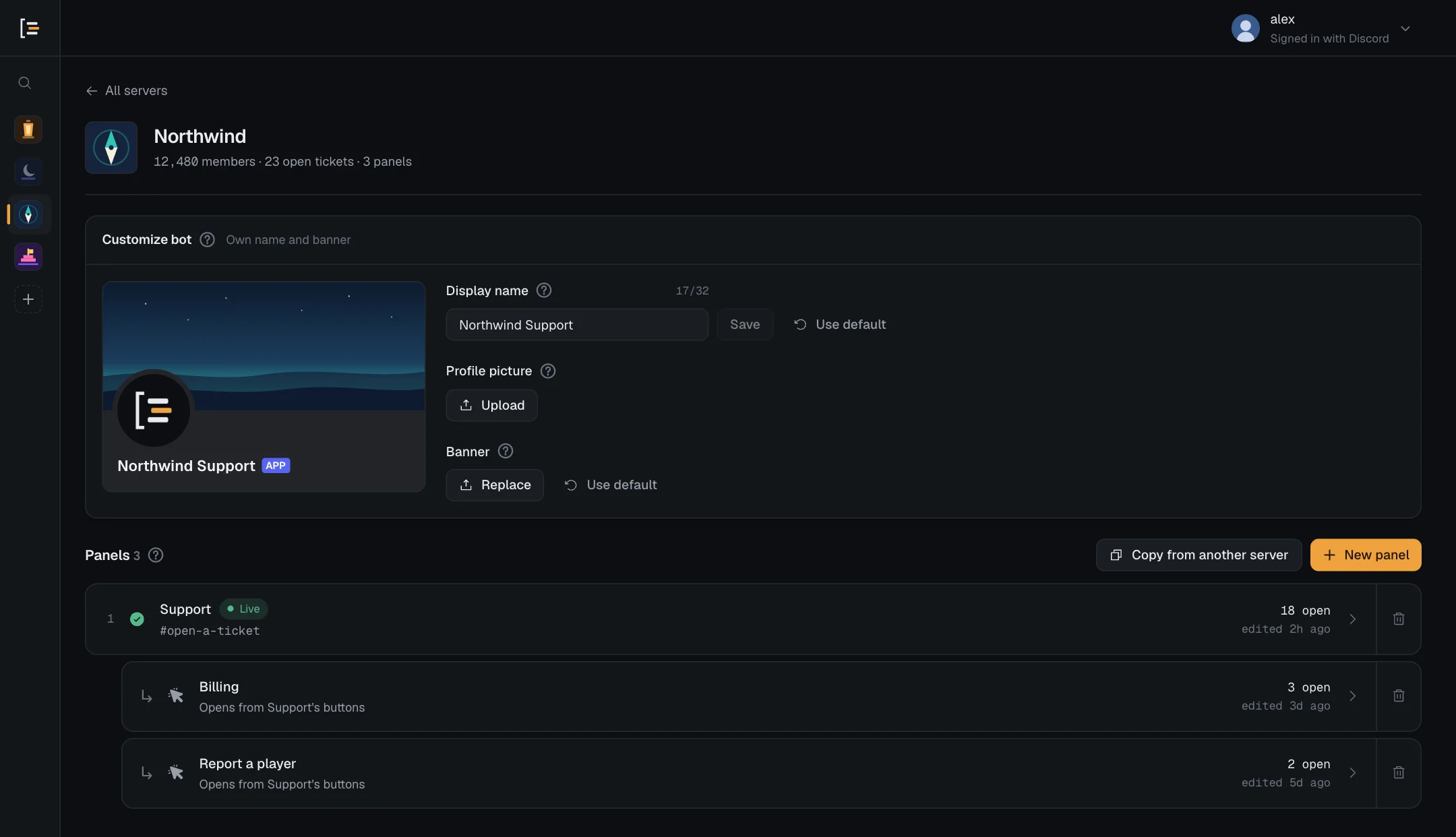
The buttons on this page, Delete, Copy, Rename, Update and Send panel, sit on the panel row of a panel's editor, beside the panel picker, with New panel last. The dashboard shows the row.
#One panel or several
A small server often needs one panel. When different requests need different people or places, make one panel for each, such as Support, Billing and Report a player, each with its own category, support roles, questions and limits. Limits count per panel, so a member with an open Billing ticket can still open a Report ticket.
A server can have up to 25 panels. One post can offer up to 25 options, as buttons or a menu. Each option opens a ticket with the settings of the panel it points at, so one post can lead to all your ticket types. See Buttons and the guide Several ticket types on one post.
#What the status means
| Status | What it means | What to do |
|---|---|---|
| Live | Posted, and Sortr can still see the channel. The list shows which channel. | Nothing. Press Update after changing the post. |
| In progress | Not posted yet, so members cannot open a ticket from it. The list shows Send it. | Send it to a channel. |
| Needs attention | The channel it was posted in has been deleted, or Sortr can no longer see that channel. The reason is shown under the panel's name. | Send it somewhere else. Sortr loses sight of a channel when its role is no longer let in there: give Sortr's role View Channel on that channel again, in the channel's own permissions. See Permissions. |
| Listed under another panel, or On and a panel's name | Not posted itself, but another panel's options open it, so it already works through that post. Opened from one panel, it usually sits under that panel with "Opens from Support's buttons" (that panel's name). Opened from several, it is a row of its own reading On 2 panels. | Nothing. See Panels opened from another panel. |
If someone deletes the post itself in Discord, the panel list can still read Live, because the list does not ask Discord about each post. Opening the panel does: its editor then marks it as needing attention, with "That panel message was deleted in Discord. Send it again." Send it again to put a new post up. Your log channel gets a "Panel message deleted" entry when this happens, from the Panel message gone event, which is on by default.
#Creating a panel
Press New panel on the server page or on the panel row. A window titled Name this panel opens straight away. Type the name under Panel name, up to 80 characters, and press Create panel: Sortr creates it under that name, with default settings and no support roles, and opens it. Cancel, or Esc, closes the window and creates nothing. A click beside the window does nothing, so a panel is never made by accident. Then work through its settings, or follow the Quick start.
To start from an existing panel instead, open it and choose Copy › Duplicate in this server. That makes a new panel with the same settings, called the same name with "(copy)" on the end, not posted yet. To bring one over from another server, see Copy panels between servers.
A server holds at most 25 panels; past that Sortr says "This server already has 25 panels, which is as many as Sortr allows." A server can also create only five panels in a row, then one more every six minutes, counting duplicates and panels created from an option. Past that you are told "Too many requests" and how many seconds to wait.
#Posting a panel
- Press Send panel. It is on the panel row. With unsaved changes it reads Save & send and saves them first.
- Pick the channel. A panel that has never been sent starts with no channel picked. Open Channel and choose one: your text channels are listed under their categories, and Find a channel searches by channel or category name.
- Press Send panel. It stays greyed out until a channel is picked. Sortr posts the panel message with its buttons or menu, and the panel turns Live. The line under the panel row says "Posted. Members can open a ticket from the post in #channel.", and "the post in #channel" links to the post in Discord.
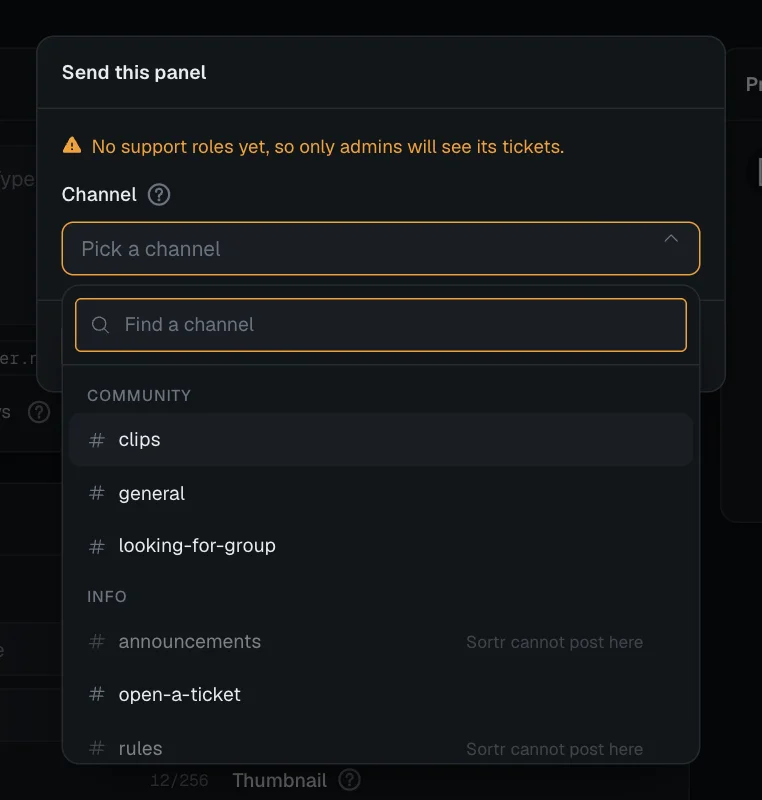
Nothing else is created until someone presses the post. The send window warns if the panel is still called New panel, or has no support roles yet.
The list leaves out channels Sortr's role cannot see, and greys out, as "Sortr cannot post here", those where it cannot send messages with embeds. A panel's channel needs View Channel, Send Messages, Embed Links and Read Message History for Sortr's role. For a private channel, let Sortr's role in, in the channel's own permissions. Once a panel is posted, the warning "Sortr can't reach everything your panels use." on the server page names its channel if any of these is missing there. See Permissions.
Sortr checks those four again when you press Send panel. If one is missing, nothing is posted and the line under the panel row says "Sortr can't post in that channel. Give its role View Channel, Send Messages, Embed Links and Read Message History there." Two other answers only ask you to wait: "Sortr is sending a lot of images right now. Try again in a moment.", for a panel with images while many are being sent across Sortr, and "Sortr is pausing its calls to Discord for a few minutes. Try again shortly."
A panel that gives members a role at or above your own highest role, through an option's Give roles or the roles it adds when a ticket opens or closes, can only be posted somewhere new by the server owner: its first post, or a post in another channel. Anyone else is told "Only the server owner can post this panel somewhere new, because it gives "VIP", which is above your highest role." Sending it again to the channel it is already in works for every admin. See Who can pick which roles.
#Updating a posted panel
Saving changes to Panel message or Buttons does not touch the post already in the channel. Press Update to rewrite that message in place, so it keeps its spot and any link to it keeps working. With unsaved changes the button reads Save & update. It is greyed out until the panel has been sent. Update checks Sortr's permissions in the channel the same way, and answers "Sortr can't reach that channel any more. Give its role View Channel, Send Messages, Embed Links and Read Message History there." when one is missing; the two answers above that ask you to wait apply to it too.
Some changes need no Update. Everything that happens inside tickets, such as categories, support roles and messages, follows your saved settings from the next thing Sortr does. An option you point at a different panel opens that panel's tickets straight away, as a button or as a menu entry. An option you remove stops working on the post at once: pressing it tells members "This option no longer works. Let the staff know so they can fix it."
#Posting it again
Once a panel is posted, its button reads Send again. The window opens with the channel the panel is in already picked, and Repost panel posts a fresh copy, there or in another channel. The earlier post stays and keeps working, so delete it in Discord if you only want one. On an earlier post, a button whose option you have since pointed at a different panel answers "This option no longer works. Let the staff know so they can fix it."; on the newest post it opens the new panel. The dashboard follows the newest post: that is the one Update rewrites and the status describes.
#Renaming a panel
Press Rename, change the Panel name, and press Save name. The name is used in the dashboard and wherever {panel.name} appears, including the default title of the panel message. The post keeps its current text until you press Update.
#Deleting a panel
- Start the delete. Press the bin icon on the panel's row in the list, or Delete on the panel row.
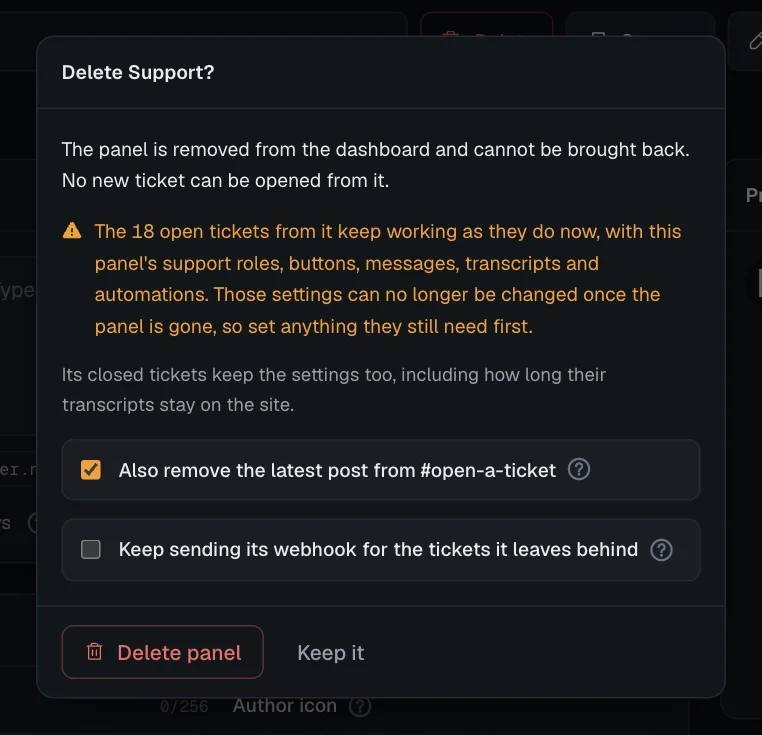
- Read the window. It counts the open tickets from this panel and says they keep working "with this panel's support roles, buttons, messages, transcripts and automations". It also names any panel with a button or menu option that opens this one, which stops working until you point it somewhere else.
- Decide about the post. If the panel is posted, the window offers Also remove the latest post from its channel, already ticked. Untick it to leave the post in place.
- Decide about its webhooks. If the panel has webhooks switched on, the window also offers Keep sending its webhooks for the tickets it leaves behind, unticked. Left unticked, they stop now. Ticked, they keep sending until the last of those tickets is deleted, or until someone presses Stop for them on the server page.
- Confirm. Press Delete panel, or Keep it to back out.
What happens then:
- The panel is removed from the dashboard and cannot be brought back. No new ticket can be opened from it.
- A post left in place stays in the channel, and its button answers "This option no longer works. Let the staff know so they can fix it." Earlier posts from Send again are not tracked, so remove those in Discord.
- Options on other panels that opened it stop working. They are left off those panels' posts at the next send or update, and those panels' save bars name them until you point them elsewhere or remove them.
The panel's tickets, open and closed, keep their channels and keep working as they do now. They keep the panel's settings as they were when you deleted it: its support roles, ticket buttons, messages, transcripts and how long the copies on sortr.xyz are kept, its event log, slash commands and Automations, and its webhooks if you chose to keep them. Its Google Sheet link is not kept, since no form can be sent from a deleted panel. Its slash commands stay in Discord's list while any of those tickets is open or closed.
Kept webhooks are named, by site, in the Panel deleted log entry and in an Integrations changed entry. The server page then lists them under Deleted panels still sending webhooks, where Stop ends them and drops anything still waiting to be sent. See Webhooks.
Apart from stopping kept webhooks, those settings can no longer be changed once the panel is gone, so set anything the tickets still need before you delete it. Sortr keeps them only while they are needed: once the last of the panel's tickets is deleted, it keeps only how long their transcripts stay on sortr.xyz and where their log entries go, and drops the rest, images included. When the last of those transcripts is gone too, and its tickets' form answers have expired, nothing of the panel is left.
A server keeps the settings of at most 200 deleted panels for their tickets. Past that, Sortr won't delete a panel that has tickets, including deleted ones it still holds a record of. It says "This server already keeps 200 deleted panels for their tickets. Each goes by itself once its tickets are deleted, their answers have expired and their saved transcripts are gone. Keep this panel until then.", and the post stays where it is. A deleted panel stops counting once nothing of it is left, as above.
Older tickets, from a panel deleted before Sortr kept settings this way, run on Sortr's default settings instead. Only the server owner and Administrators can use slash commands in them.
Careful. There is no undo. If you only want to stop new tickets for a while, remove the post in Discord and keep the panel.
#Panels opened from another panel
A panel does not need a post of its own. If an option on another panel's post points at it, that option opens tickets with its settings. This is how one post with a menu can offer General, Billing and Report a player, each with its own category and support roles.
Here is how such a panel shows up in the dashboard:
- In the panel list on the server page, when exactly one panel opens it and that panel has a numbered row of its own, it sits directly under that panel, indented and marked with an arrow, with the line "Opens from Support's buttons" (the name of the panel that opens it). Otherwise it has a row of its own reading On and the other panel's name, or On 2 panels with "Opened from" and their names when several open it.
- In the panel picker it is grouped the same way: under the panel that opens it, indented and marked with an arrow, or on its own row with a small tag naming the panel that opens it, or how many do. The panel row has the details.
- In its editor there is no Panel message section while the panel has no post of its own, because that message would never be sent. The editor opens at Opening message instead.
If you do send it, it gets a post of its own, turns Live, and Panel message comes back. Panel message also stays when the panel that opens it is itself unposted and only opened from another panel.
#Creating a panel from an option
You can make such a panel without leaving the panel that has the post.
- Create it. On the Buttons screen, open an option's Opens box and choose Create a new panel, the last row. Sortr creates a panel called New panel at once, with default settings and no post, and points the option at it.
- Save. The link between the two panels is part of this panel's settings, so it is kept when you press Save changes. If this panel is already posted, an option already on its post opens the new panel from the moment you save. Press Update as well, so the post shows your options as they are now.
- Open the new panel. It is in the panel picker straight away, linked to the panel you are on. If you pick it before saving, a Save your changes first? window opens. Press Save and open to keep the link and go there.
- Set it up. Press Rename to give it a name, then set its category, who can see it and its messages.
A panel made this way starts with two settings taken from the panel you made it from: its transcript channel and its event log channel, as they are on screen at that moment. Everything else starts at the defaults, support roles and categories included.
Good to know. Discard changes undoes the link, not the panel. The new panel stays in the server as a panel of its own, not posted, until you delete it.
See Buttons, or the guide Several ticket types on one post.