DocsGetting started
The dashboard
A tour of Sortr's dashboard: signing in, which servers you see, the server page, the panel editor, how saving works, and your account menu.
The dashboard is where you set Sortr up for every server you run. This page shows your way around it: signing in, finding a server, editing a panel, how your changes are saved, and the account menu.
sortr.xyz › Dashboard
#Signing in
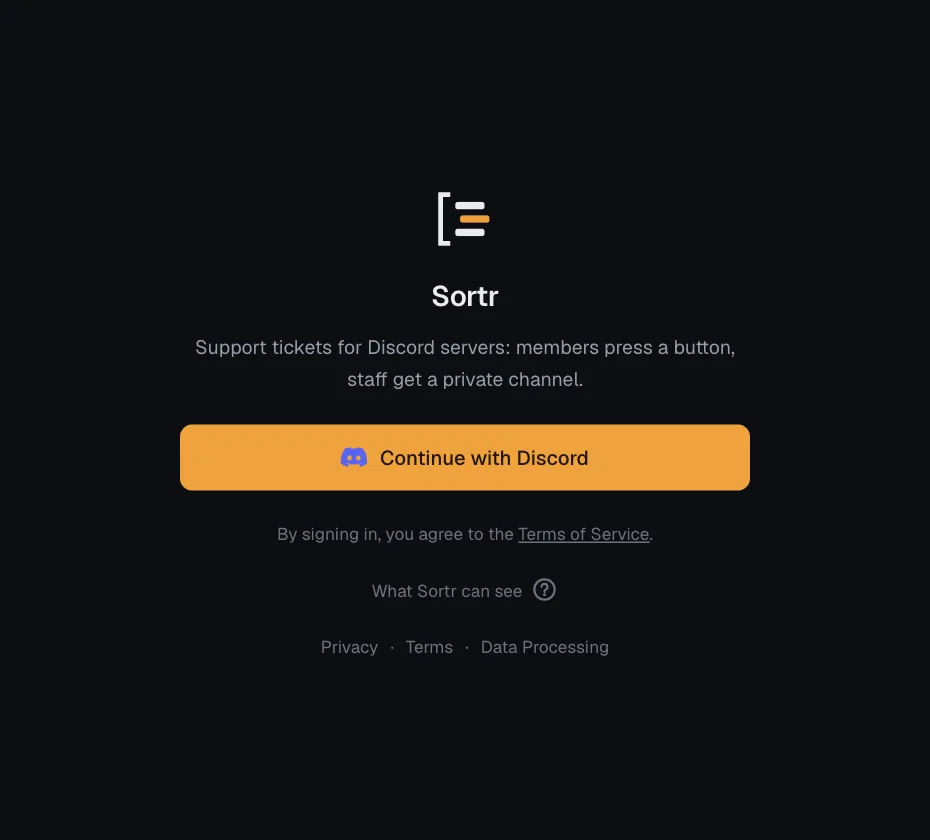
The sign-in screen reads "Sortr" and "Support tickets for Discord servers: members press a button, staff get a private channel.", with one button, Continue with Discord. Any Discord account can sign in, unless the people who run Sortr have blocked it.
Under the button, the screen says "By signing in, you agree to the Terms of Service." There is no box to tick. Below that, the ? beside "What Sortr can see" says what signing in shares: "Your name and your server list. It cannot see messages in a server until you add it there." At the bottom are links to Privacy, Terms and Data Processing.
Signing in asks Discord for two things only: who you are (your name, your avatar, and whether your account has two-factor authentication on) and the list of servers you are in. The two-factor part only matters in a server that requires it for moderators (see Servers that require 2FA). From that list it keeps only the servers you can manage. It cannot read messages in any server this way; it only sees a server's channels once the bot itself has been added there. Privacy has the details.
A session lasts a week. If it runs out while you are working, a Your session ended window appears and your unsaved changes stay on the page. Press Sign in in a new tab, finish signing in there, then come back and press Retry.
Your account can be signed in on up to 10 browsers or devices at once; signing in on one more ends the oldest session. Each Discord account can sign in 10 times in a row; after that it gets one more sign-in every six minutes. One internet address, which an office or a phone network may share, can sign in 40 times in a row, then once every 90 seconds. A sign-in refused for this, or one that did not go through for another reason, brings you back to the sign-in screen with "Sign-in did not go through. Wait a few minutes, then try again." An account the people who run Sortr have blocked gets "This Discord account can't use Sortr. If you think this is a mistake, write to team@sortr.xyz." instead. If that account is already signed in, for example after opening a transcript link, the screen shows the same words with "Signed in as" its name and Sign out.
#Your servers
After signing in you land on Your servers: every server where you are the owner or have the Administrator permission. Manage Server on its own is not enough, because through Sortr you can read private tickets and change who sees channels.
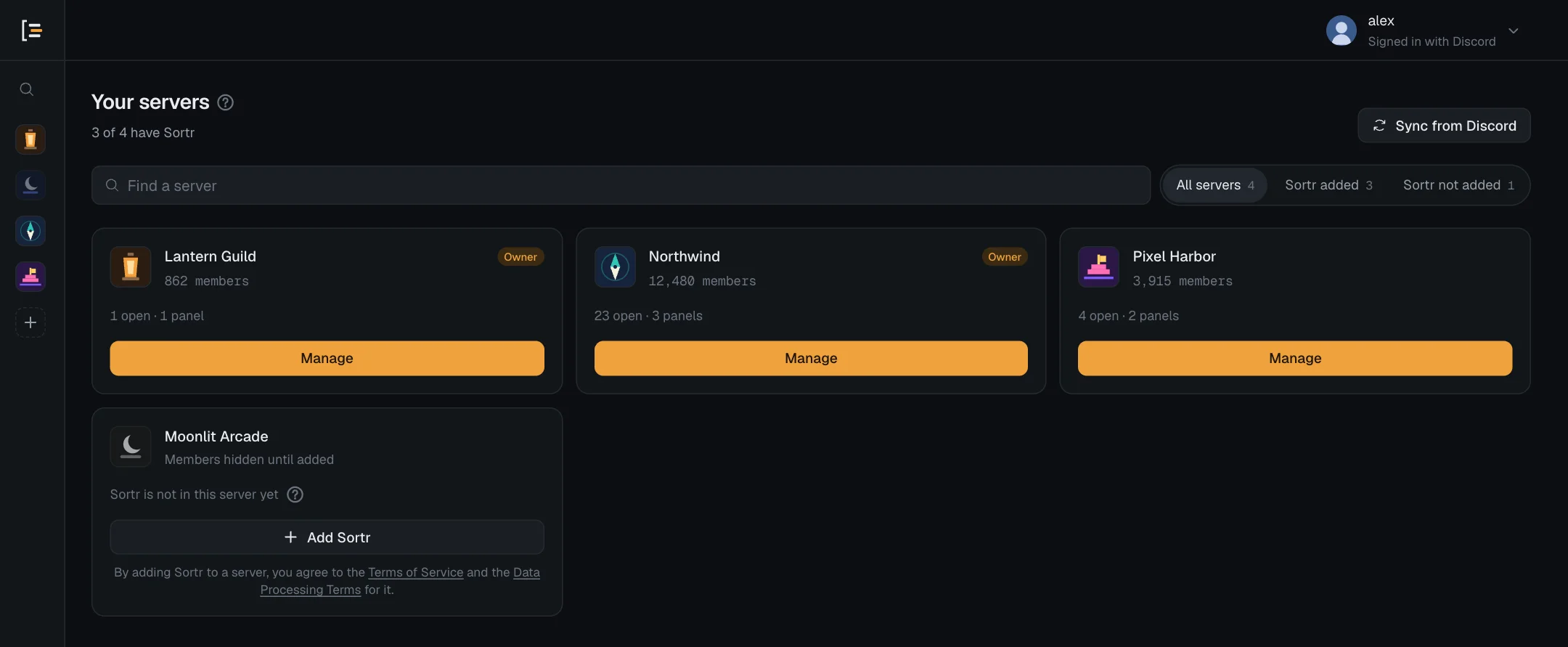
- Servers with Sortr come first, with their member count, open tickets and number of panels, an Owner tag on the ones you own, and a Manage button. A middle click on one of these cards (pressing the mouse wheel) opens that server in a new tab.
- Servers without Sortr come after them. Their icon is grey until you point at the card, they read "Members hidden until added" and "Sortr is not in this server yet", and they have an Add Sortr button with the line "By adding Sortr to a server, you agree to the Terms of Service and the Data Processing Terms for it." under it. See Add Sortr to your server.
- A server whose owner requires two-factor authentication (2FA) for moderator actions is only yours to manage while your own Discord account has 2FA on. Without it, its card says "This server requires two-factor authentication for moderators. Turn on 2FA in Discord to manage Sortr here." and has no Manage button. Turn 2FA on in Discord, then press Sync from Discord. The owner can always manage it. See Servers that require 2FA.
- All servers, Sortr added and Sortr not added filter the list, and Find a server searches it by name.
Sortr asks Discord for your server list at most once a minute. If you have joined a server, been made an admin, added Sortr somewhere or turned on 2FA for your Discord account in the last minute, press Sync from Discord to ask again straight away. It works the other way too: before any change is saved, Sortr checks with Discord, so within a minute of losing Administrator in a server you can no longer change anything there.
A few saves ask Discord again at that moment, because what they set up outlasts your access: one that switches on a webhook (a new one, a new Address or one switched back on), links the Google Sheet export or switches it on, or adds a support role. If you are no longer the owner or an Administrator, the save is refused with "Discord says you are no longer an Administrator of this server, so this save cannot switch on a webhook or the Google Sheet export, or add a support role." If Discord does not answer just then, it says "Sortr could not check your permissions in this server just now. Try again in a moment." and nothing is saved.
The same servers are listed down the left side of every screen. Hover over the rail to widen it. On a phone, press the menu button in the top bar, beside your avatar. At the end of the list, Add a server opens Discord's page to add Sortr to a server you pick there, with the same terms line under it.
#The server page
Press Manage on a server to open it. The top shows its name, member count, open tickets and number of panels. If something a panel needs is out of Sortr's reach, a warning comes next: "Sortr can't reach everything your panels use.", naming each permission Sortr's role is missing and each category or channel it cannot work in, with Re-add Sortr, which opens Discord's invite with the server picked, Check again, and the terms line under them. The warning shows in every panel's editor too, and there is none when Sortr can reach everything. See Add Sortr. Below that, in this order:
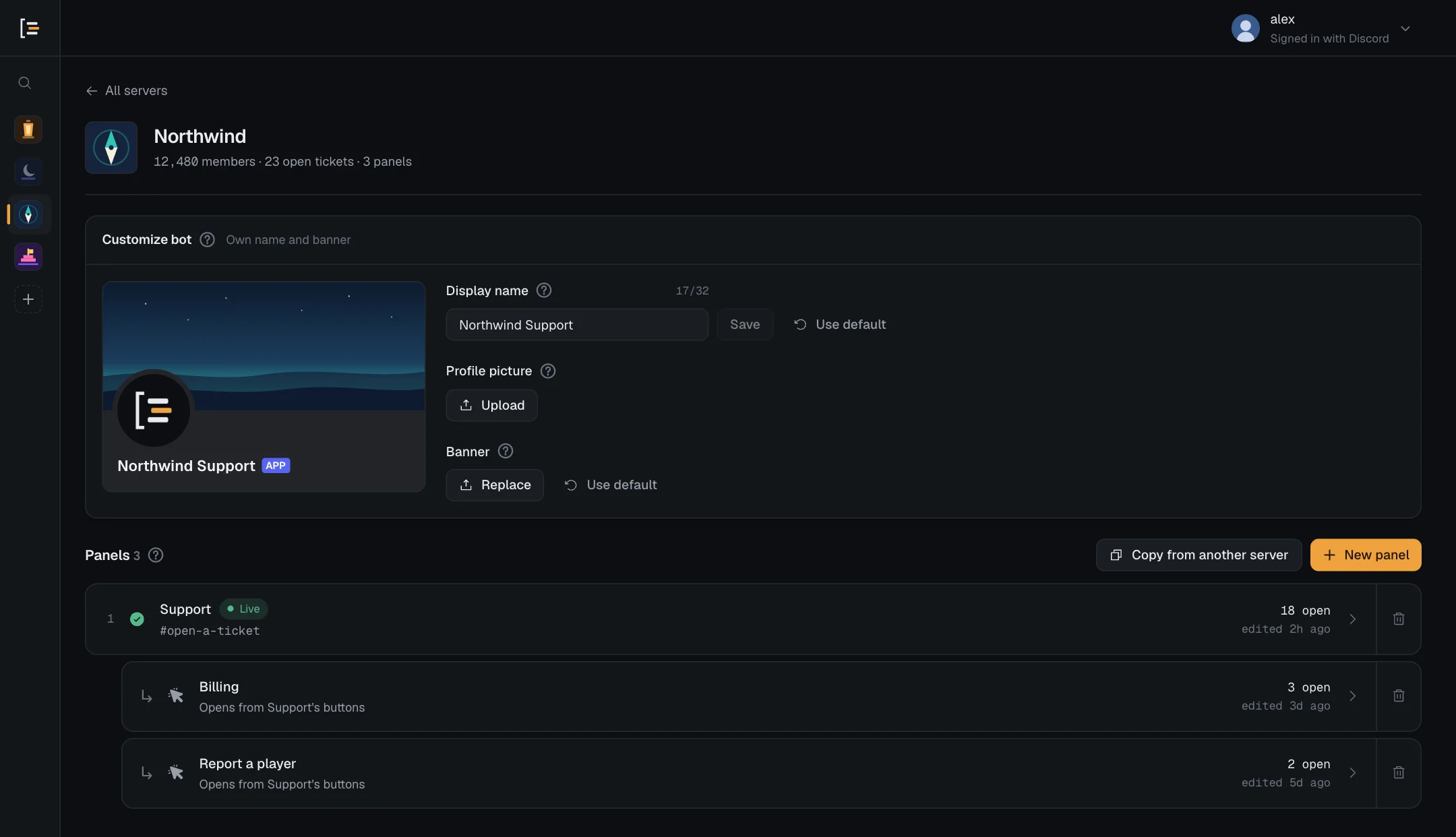
- Customize bot is the first card. It gives Sortr its own Display name, Profile picture and Banner in this server only. See Customize bot.
- Deleted panels still sending webhooks comes next, only while there are any: panels deleted with their webhooks kept for the tickets they left behind. Each row names the panel, the sites it sends to and how many tickets are left, and Stop ends those webhooks. See Webhooks.
- While Ticket Tool is in the server, a card says "Ticket Tool is in this server." with Take over its tickets, Replace a panel and Import from Ticket Tool. Once you have imported panels that are still waiting to replace Ticket Tool's, it says how many, with Import more, Take over tickets and Replace panels. See Switching from Ticket Tool.
- Panels lists every panel in the server with its status, the channel it is posted in, its open tickets and when it was last edited. A panel that only one other panel's options open sits indented under that panel, with a line such as "Opens from Support's buttons". Press a panel to edit it, or the bin icon at the end of its row to delete it. Panels explains each status.
- New panel creates a panel, and Copy from another server brings one over from another server you manage. Both sit beside the Panels heading. See Copy panels between servers.

All servers, at the top left, takes you back to the list.
#The panel editor
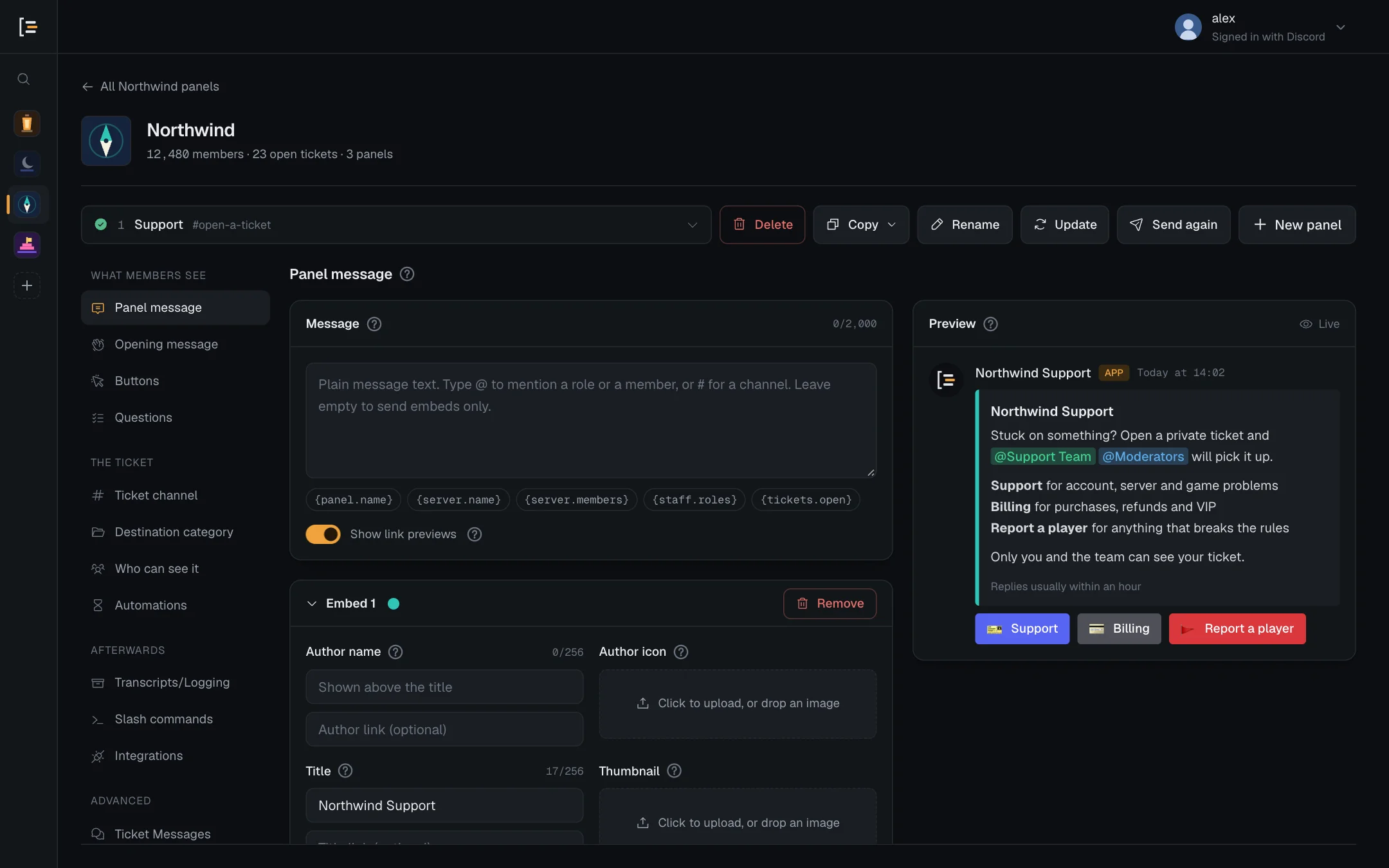
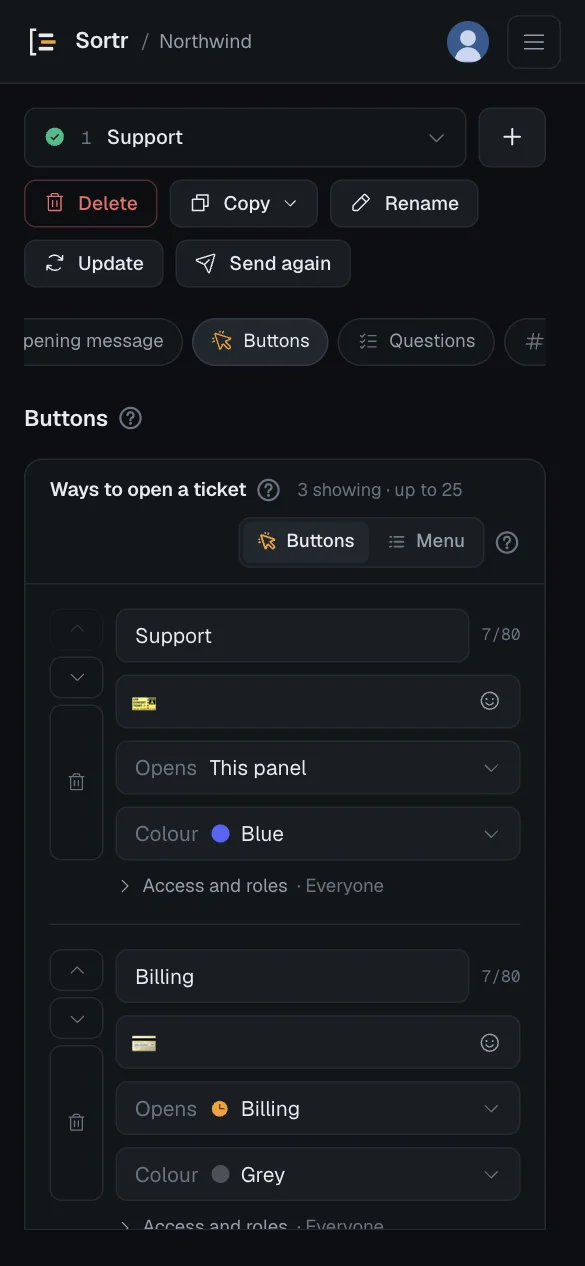
Opening a panel brings up its editor: the panel row at the top, the section menu on the left, the settings in the middle and a preview on the right. On a wide screen the editor spreads out to use the room. The link at the top left, which reads All followed by your server's name and panels, takes you back to the panel list.
#The panel row
The row above the settings holds the panel picker, the buttons that act on the open panel, and New panel.

The panel picker is the wide box. It shows the panel you are in, with its status and where it is posted. Press it to move to another panel:
- The list holds every panel in the server, each with the channel it is posted in, "not posted yet", or in red what is wrong with it. The panel you are in is highlighted. Find a panel searches by name.
- A panel that another panel's option opens carries a small tag with that panel's name, or "2 panels" when several open it. When exactly one panel opens it, it sits directly under that panel instead, indented, with an arrow in place of a number.
Beside the picker are Delete, Copy (with Duplicate in this server and Copy to other servers), Rename, Update and Send panel, which reads Send again once the panel is posted. New panel comes last. Panels covers what each one does. On a narrower screen the buttons move to a line of their own under the picker. What a button did, or why it could not, is said in one line under the row, such as "The posted message now matches these settings."
#The left menu
A panel's settings are split into sections, grouped in the order a ticket happens. On a narrow screen the menu becomes a row you scroll sideways.
| Group | Sections |
|---|---|
| What members see | Panel message, Opening message, Buttons, Questions |
| The ticket | Ticket channel, Destination category, Who can see it, Automations |
| Afterwards | Transcripts/Logging (Transcripts, Event log and Closed tickets), Slash commands, Integrations (webhooks) |
| Advanced | Ticket Messages, Ticket buttons, Limits and rules |
A panel that members only reach through another panel's option has no Panel message section, and its editor opens at Opening message.
#Help and previews
A small ? sits beside section titles and most settings. Hover over it, tap it or tab to it to read what the setting does. Screens that change what members see have a preview card, drawn the way Discord shows it, with example values in place of variables such as {user}. The previews never touch Discord.
Every dropdown is Sortr's own list, the same on every computer and phone. The long ones have a search box at the top: channels, roles, categories, panels and time zones.
#Saving your changes
One save bar at the bottom of the page covers the whole panel, so you can change things in several sections and save once.

- As soon as something changes, the bar shows Save changes, Discard and "Unsaved changes". Discard goes back to what was last saved.
- After a save it says "Saved. The bot uses this from the next ticket." The post already in your channel keeps its old look until you press Update.
- Update, Send panel, Duplicate in this server and Copy to other servers save your changes first. While there is something unsaved, Update reads Save & update, and Send panel on a panel not yet posted reads Save & send.
#When Save is greyed out
Sortr will not save settings that would break later, such as a message Discord would refuse when a member presses the button. The bar then names the section and the problem instead, for example "Panel message · The panel message is empty. Discord refuses a message with no text and no embed.", with "and 2 more" when there are several. Fix what it names and Save changes comes back. The buttons on the panel row that save first run the same check, and say the same thing under the panel row.

#When another admin saved first
If someone else saved the same panel after you opened it, your save is stopped rather than written over theirs, and the bar says "Someone else saved this panel after you opened it." Choose Keep my changes to replace their version with yours, or Load their version to drop your edits and see theirs.
Sortr itself can be the one who saved: when every category in a list is full and it creates the next one, it adds that category to the panel. Keep my changes keeps such a category at the end of its list, and a note says "A category was added to Destination category while you were editing, so your save kept it."
#When the panel was deleted somewhere else
If another admin deletes the panel while you have unsaved changes in it, the editor stays open with your edits. When you next try to save, it says "This panel was deleted somewhere else. Your unsaved changes are still here, but they can no longer be saved. Copy anything you need." With nothing unsaved, Sortr takes you back to the panel list instead.
#Leaving with unsaved changes
Sortr asks before unsaved changes are lost. Which question you get depends on where you are going.
- Picking another panel in the panel picker opens a window titled Save your changes first? with three buttons. Save and open saves this panel, then opens the other one. Discard changes opens it without saving. Keep editing stays where you are. If something blocks the save, the window stays open and names the section and the problem, and nothing moves until the save has worked.
- Every other way out opens Discard unsaved changes? instead: the link back to the panel list, another server or All servers, New panel, and signing out. Press Keep editing to stay, or Discard changes to go.
Closing or reloading the tab gets your browser's own warning.
Tip. The address bar remembers the server, panel and section you are on, so reloading the page brings you back to the same place. Moving around inside the dashboard does not add to your browser history, so the browser's Back button leaves the dashboard rather than stepping back through panels.
#Your account
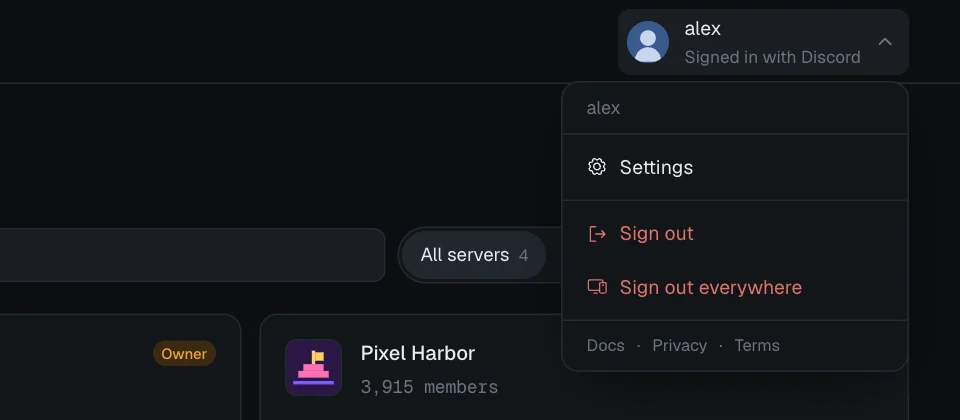
The account menu is at the top right of every dashboard page: your avatar, your name and "Signed in with Discord". On a phone it is your avatar in the top bar, beside the menu button. Press it for everything that belongs to your account rather than to a server.
| Item | What it does |
|---|---|
| Settings | Opens a window with your Discord name and ID, the day This session expires, and Servers shown, which reads "Ones you own or are an Administrator in". Your name and avatar come from Discord and change when you change them there. Sign out everywhere is here too. |
| Sign out | Ends the session in this browser. |
| Sign out everywhere | As its tooltip says: "Ends every Sortr session for this account, on every device". Sortr also asks Discord to cancel the access those sessions held. Use it if you signed in on a computer that is not yours. |
Both ways of signing out ask about unsaved panel edits first. At the bottom of the menu are links to Docs, Privacy and Terms.