DocsGuides
Support hours and quiet tickets
Open tickets only during your support hours, tell members when to come back, remind staff about quiet tickets, and close and clear out old ones on a timer.
This guide sets a panel so tickets can only be opened while your team is around, and tells members when to come back. It also has Sortr remind your staff when a ticket goes quiet, close tickets nobody is answering, and delete old closed ones, so the channel list stays tidy.
#You will need
- To be the server owner or have the Administrator permission.
- A panel that is set up and posted. If you have none yet, follow Quick start first.
- Your support hours, and the time zone they are in.
#Set your hours
- Open the panel. In the dashboard, pick your server, then the panel. Go to Limits and rules, under Advanced in the left menu.
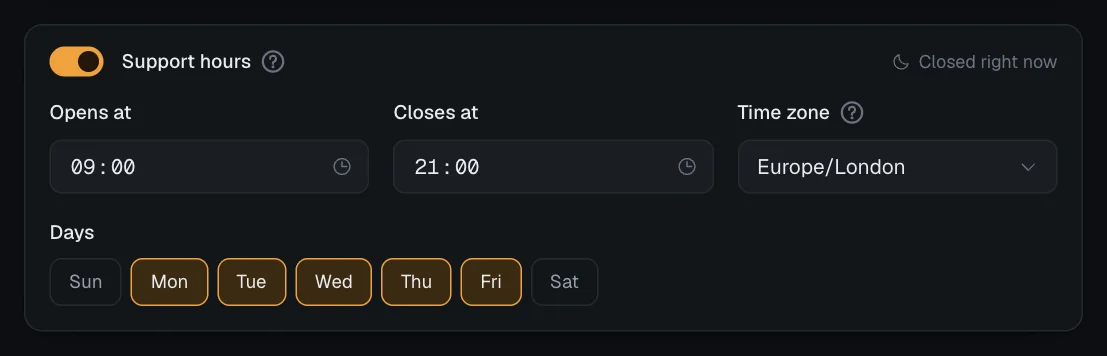
- Switch on Support hours. Find the Support hours card and switch it on.
- Set the times. Type a time into Opens at and Closes at, or press the clock button in the box and pick a half hour from the list, which runs from 00:00 to 23:30. A window that crosses midnight, such as 22:00 to 06:00, works too. It belongs to the day it starts on: with Friday ticked, it stays open until 06:00 on Saturday, whether or not Saturday is ticked.
- Set the time zone. Time zone is a list you can search: by city or region, like Paris, or by offset, like GMT+2. Your browser's own zone is first, under Suggested. A new panel starts on UTC. If a zone saved earlier is one Sortr does not recognise, the card says so in red, and the panel cannot be saved until you pick another from the list.
- Pick the days. Under Days, press a day to tick or untick it. Monday to Friday are ticked to begin with.
- Check and save. The card now says Open right now or Closed right now. Press Save changes at the bottom of the page.
Sortr does not save support hours that would shut everyone out, or that it cannot read. With the switch on and no day picked, a time left blank, or a time zone Sortr does not recognise, Save changes is greyed out and the bar at the bottom says why, for example "Limits and rules · Support hours: no days are picked, so nobody could ever open a ticket. Pick a day, or switch support hours off."
#What members see outside hours
The buttons stay on the post. When someone presses one outside your hours, nothing is created and nobody is pinged. Only they see this reply:
It does not say when you open. To add that, go to Ticket Messages, pick Outside support hours under When a ticket cannot open, and write your hours into the text. Mentioning them in the panel message helps too.
The check runs before any form opens, so nobody fills in your questions only to be turned away. It applies to everyone, staff included, and to tickets opened with /new. Roles that bypass the open limits do not skip it. To see how often members try, pick a log channel on the Event log tab under Transcripts/Logging and tick Outside support hours there. A member who keeps pressing is logged once every 10 minutes.
#Remind staff about quiet tickets
- Go to Automations. It is under The ticket in the left menu.
- Switch on Warning. If it has no length yet, Warn after starts at 1 day. Half days work, so 0.5 is twelve hours. Any new message in the ticket, apart from the reminder itself, starts the clock again.
- Pick who is reminded. Under Silently ping, add your support role. With no role picked, nothing is posted.
Once a ticket has been quiet that long, Sortr posts a "Waiting on a reply" message in it. It mentions those roles without sending a push notification, never pings the member, and is posted once per quiet spell. Its wording is the Quiet ticket reminder under Ticket Messages.
#Close quiet tickets and clear out old ones
- Switch on Automatic close. The first time, Close after is set to 2 days of silence. Keep it longer than Warn after, or the reminder is never sent. When it passes, Sortr closes the ticket the way a person would: it locks the member out, moves the channel to your closed category if you set one, and posts the Closed for inactivity message. The transcript is saved at this point too, unless you change Save it in step 3.
- Switch on Automatic delete. The first time, Delete after is set to 7 days. It counts whole days from when the ticket closed, up to 365. When the time comes, Sortr first saves a transcript if the ticket has no copy since its last close, and every time when Save it is set to When the ticket is deleted (step 3). Then it posts the Before deletion message and deletes the channel 10 seconds later. The timer asks nobody first, unlike the Delete button, which asks once. Reopening a ticket stops the clock.
- Check where transcripts go. Deleting removes the channel and its history for good. Under Transcripts/Logging, on the Transcripts tab, make sure Post it to Discord has somewhere to post, its own Channel or your log channel, or that Keep a copy here is on. Save it sets the moment. When the ticket closes is the default. Pick When the ticket is deleted if staff keep writing in closed tickets: the copy posted in Discord then holds what they wrote after the close as well. With that choice, closed tickets have no transcript until they are deleted, so the Ticket closed notice has no link to one. See Transcripts.
- Save. Press Save changes.
Good to know. The timers count every hour, including outside your support hours. A ticket left on Friday evening can be reminded about or closed over the weekend, so pick lengths that allow for your days off. Sortr checks every five minutes, so timings are approximate to that.
#Try it
- Move your hours out of the way. Change Opens at and Closes at so that now falls outside them. The card says Closed right now. Press Save changes.
- Press the panel's button in Discord. You get the Support is closed right now reply, and no ticket is created.
- Put your hours back. Set the real times and save again.
- Check the timers later. They need real time to pass. With a log channel picked on the Event log tab, Closed for inactivity and Deleted automatically are posted there as they happen, and are on by default.
#Related
- Limits and rules: support hours, cooldown, blocked roles and ticket limits.
- Automations: every timer in detail.
- Ticket Messages: rewrite the refusal, the reminder and the close notices.
- Transcripts: what is kept, when it is saved, and for how long.
- Event log: a channel with everything Sortr does.