DocsAdvanced
Customize bot
Give Sortr its own display name, profile picture and banner in your server, and control the colour of its embeds.
Give Sortr its own name, profile picture and banner in your server, so it looks like part of your community. New embeds are white, and you can pick a colour for each one, including your server icon's own colours.
Dashboard › your server › Customize bot
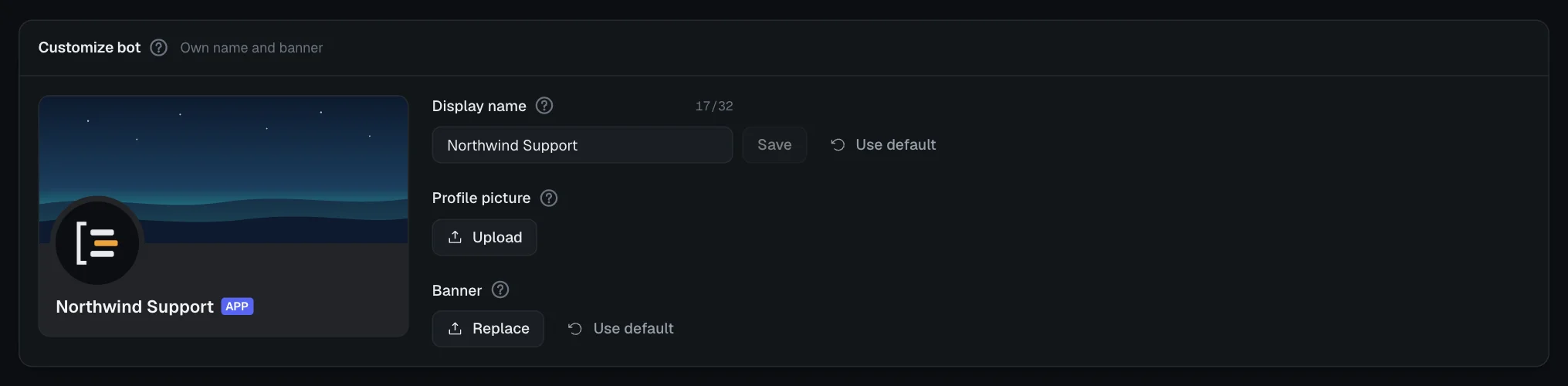
#What you can change
| Setting | What it does | Default |
|---|---|---|
| Display name | The name members see on Sortr's messages and in the member list. | Sortr's own name |
| Profile picture | The round picture beside every message Sortr sends in your server, and on its profile. | Sortr's own picture |
| Banner | The strip across the top of Sortr's profile when someone clicks its name. | Sortr's own banner |
All three apply to your server only. Members there see them on Sortr's messages and profile; every other server keeps the default. Discord stores them on Sortr's membership in your server, so Sortr keeps no copy of the name or the images.
Customize bot is the first card on your server's page, above the list of panels. It only appears once Sortr is in the server. The card shows a preview of Sortr's profile, drawn the way Discord shows it, and the words beside its title sum up the state: "Default look", or what your server has its own version of, such as "Own name" or "Own name, picture and banner".
There is no save bar here. The name has its own Save button, and a picture or banner is saved as soon as you have framed it.
#Change the display name
- Open your server. In the dashboard, pick your server. Customize bot is at the top of its page.
- Type the name. Under Display name, type up to 32 characters on one line. The counter beside the label shows how many you have used, and the preview follows as you type. Nothing is sent to Discord yet: Save lights up and the card says "Not saved yet. Press Save to change the name in Discord."
- Press Save. Enter in the field does the same. The card says "Sending to Discord…", then "Saved. Sortr's display name in this server is updated."
The new name shows on Sortr's messages and in the member list, in this server only. Discord calls it Sortr's nickname in your server.
A name that could pass for Discord or another app can't be saved, because Discord's rules forbid an app pretending to be one. That is any name containing Discord, Clyde, Ticket Tool or Trust and Safety, written in any way, such as "Discord Support" or "T1cket-Tool", and the name "System" on its own. "Ticket System", "Support" and "Northwind Tickets" are fine.
To go back to the default, press Use default, which appears once your server has its own name. Clearing the field and pressing Save does the same. The card says "Saved. The default display name shows here again." The grey text in the empty field is the default name.
#Change the picture or banner
- Open your server. In the dashboard, pick your server and find Customize bot at the top of its page.
- Pick an image. Press Upload under Profile picture or Banner (it says Replace once there is one already) and choose a file.
- Frame it. A window opens, Frame the profile picture or Frame the banner, the way Discord's own upload does. The picture fills the shape Discord shows: a circle for the profile picture, a wide strip for the banner. Drag the picture to move it, and use the slider to zoom in. With the keyboard, the arrow keys move it and + and - zoom. Recenter puts it back in the middle. Press Apply, or Cancel to change nothing.
- Wait for Discord. The preview shows your image while it says "Sending to Discord…". There is no Save button for images: the change is made as soon as Discord accepts it, and the card says "Saved. Sortr's profile picture in this server is updated." or the same for the banner.
Apply makes the file in your browser, at 512 × 512 pixels for the profile picture and 1200 × 480 for the banner, from what the frame shows. A JPEG stays a JPEG, and any other picture becomes a PNG. Nothing is uploaded before you press it.
An animated GIF is not framed, so it keeps moving: the window shows it with "An animated GIF is sent as it is, so it keeps moving. To frame it, pick it again as a PNG or JPEG." and an Upload button.
The size and format rules are behind the ? beside each title:
| Image | Shape | Files |
|---|---|---|
| Profile picture | Square, at least 128 × 128 pixels. You frame it after picking: drag it into the circle and zoom. | PNG, JPEG, GIF or WebP, under 8 MB. An animated GIF goes as it is. |
| Banner | Wide, 5 : 2. You frame it after picking: drag it into place and zoom. | PNG, JPEG, GIF or WebP, under 8 MB. An animated GIF goes as it is. |
#Go back to the default
Once your server has its own picture or banner, a Use default button appears beside Replace. Press it and Sortr's default shows in your server again. The card says "Saved. The default profile picture shows here again." The name has its own Use default, described above. When all three are back, the card reads "Default look".
#Limits and error messages
A change that does not go through is explained in the same line of the card.
| The card says | What it means |
|---|---|
| "Too many requests. Try again in 30 s.", with its own number of seconds | Name, picture and banner changes share one limit per server, resets included: four in a row, then one more every 30 seconds. |
| "Discord is limiting how often the display name can change. Try again in a few minutes." | Discord has its own limit of a few changes every few minutes. The message names the profile picture or the banner when that is what you changed. |
| "Sortr's role needs the Change Nickname permission in this server to change its display name." | Change Nickname is on the invite, but Sortr's role can still lack it, for example when it was unticked on Discord's screen or taken off the role later. Switch Change Nickname on for Sortr's role in Discord, under Server Settings, then Roles. See Permissions. |
| "The name can't contain line breaks or tabs." | Shown under the field as you type, usually after pasting. The name has to be one line. |
| "That name could be mistaken for Discord or another app. Pick a different one." | Shown under the field as you type, and Save stays off. See above for which names these are. |
| "That picture is too large to open here. Pick one under 30 MB." | The file you picked is too big to frame. Pick a smaller one. |
| "This image is too large to frame (over 50 megapixels). Try a smaller one." or "This image couldn't be read. Try another file." | Shown in the framing window. A picture over 50 megapixels would freeze the page while it is drawn. Pick a smaller picture, or another file. |
| "Images need to be under 8 MB." or "Only PNG, JPEG, GIF and WebP images are accepted." | What is sent, after framing, has to be under 8 MB: usually only an animated GIF is that large. Pick a smaller file, or one of those four formats. |
| "Discord refused the profile picture:" and a reason | Discord turned the change down. The reason after the colon is Discord's own. |
| "Another image is still uploading. Wait for it, then try again." or "Sortr is receiving a lot of images right now. Try again in a moment." | You are uploading another image at the same time, for example in another tab, or many images are reaching Sortr at once. Wait a moment, then pick the picture again. |
| "The image took too long to arrive. Try again." | The picture reached Sortr too slowly: it took more than 30 seconds, or less than 16 KB arrived in 10 seconds. Check your connection, then pick the picture again. |
| "Already in progress." | Another admin is changing Sortr's look in this server at the same moment. Try again when theirs is done. |
| "Sortr is pausing its calls to Discord for a few minutes. Try again shortly." | Sortr has paused its calls to Discord for a few minutes, to stay within Discord's limits. Nothing was changed. Try again shortly. |
Good to know. In your server's audit log, Discord lists these changes as made by Sortr. The reason on each entry names the admin who made it, for example "Changed from the Sortr dashboard by" followed by their name and ID.
#Embed colours
Most of Sortr's embeds have a coloured bar down the left edge. New embeds are white, and any other colour is yours to pick, embed by embed.
A few of Sortr's own notices keep a fixed colour so their meaning is clear at a glance. Out of the box, Ticket closed, Before deletion, Closed for inactivity, Member removed and Blocked from opening tickets are red, Ticket reopened and Member added are green, and Outside support hours and Transcript log entry are blue. The other notices, and the embed with the member's answers to your questions, start white.
#Choose a colour for one embed
Every embed in the Panel message, Opening message and Ticket Messages editors has a Colour field with three ways to set it:
- White, the default.
- The dots beside it are your server icon's own colours, most dominant first. Hover over one to see how much of the icon it covers. A dot is a fixed pick: it stays the same if you change your icon later.
- The colour picker and the hex box take any colour, such as
#5865f2.
To go back, press White. Colour changes are part of the panel's settings, so press Save changes at the bottom of the page. The answers to your questions have a colour of their own, set in the Form answers card under Opening message.
Panels made before 8 October 2026. Until then, an embed could follow a Server colour that Sortr picked from your icon by itself. Those embeds keep the colour they had, and it no longer changes when your icon does. Their Colour field shows that colour with no dot marked. Pick any colour to replace it.