DocsThe ticket
Who can see it
Pick a panel's support roles, decide what they, the ticket owner and everyone else may do in a ticket, and hand roles to the member on open and close.
Tickets are private: only the member who opened one, anyone added to it, your support roles and server admins can see it. This screen sets which roles are the support team, what each of them may do inside a ticket, and which roles Sortr gives or takes away from the member when their ticket opens and closes.
Dashboard › your server › a panel › Who can see it
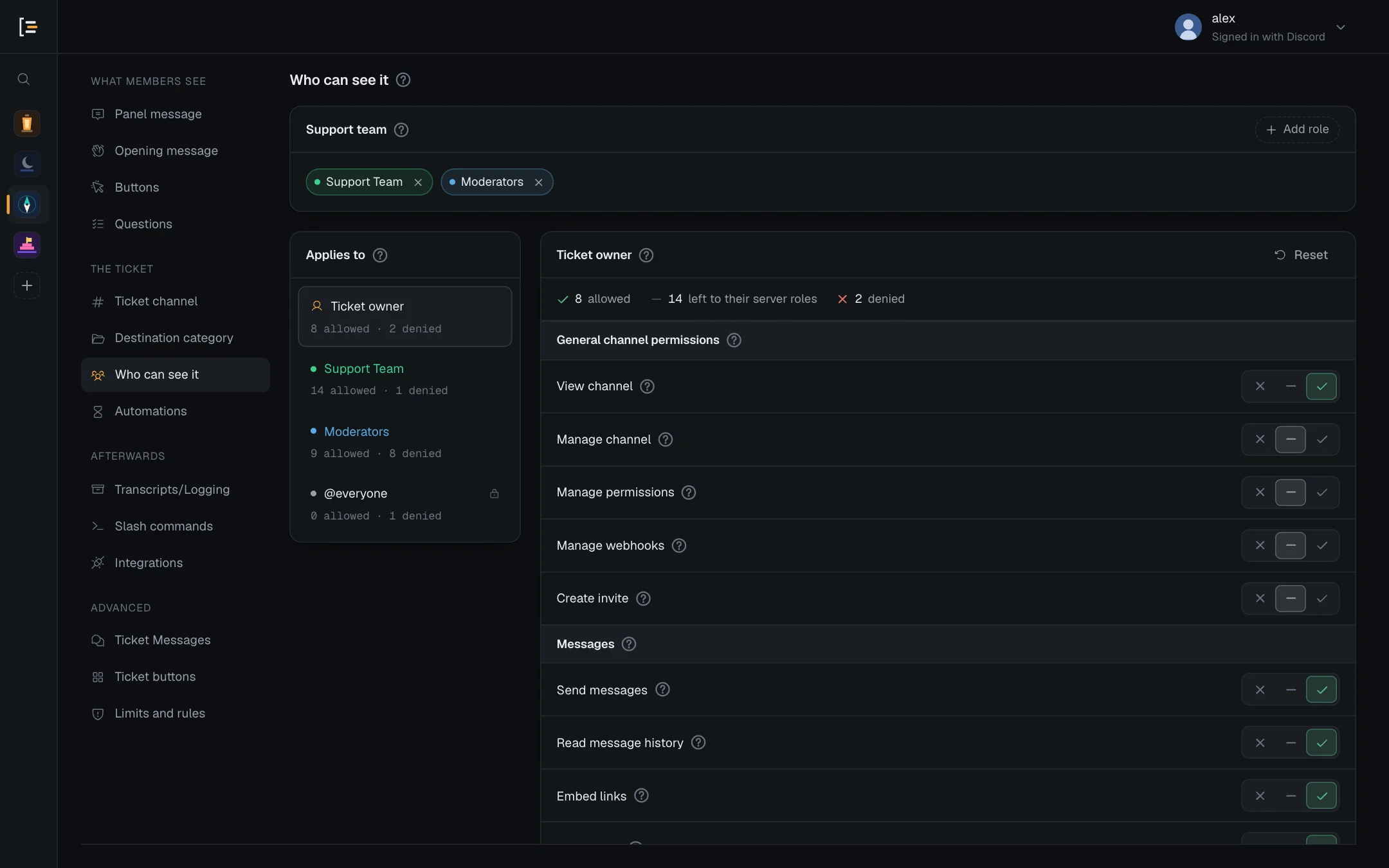
#Support team
The roles that answer this panel's tickets.
- Open the panel. In the dashboard, pick your server, then the panel.
- Go to Who can see it. It is in the left menu under The ticket.
- Add roles. On the Support team card, press Add role and click every role you want. Each one shows a number for the place it will take; click it again to unmark it. Press Add at the bottom of the list, or click anywhere outside it, and they are all added in that order. Each starts on Full access.
- Decide about tickets that already exist. Under the roles, a switch appears for each role you added, asking "Should Helpers also get access to tickets that already exist?" with the role's own name. Leave it off and the role sees only tickets opened after you save. Switch it on and saving also adds the role to this panel's open and closed tickets, so it can read those conversations too.
- Adjust it if you need to. Pick the role under Applies to to change its access level or its permissions (see below).
- Save. Press Save changes at the bottom of the page.

To take a role off the team, press the × on it. Its permissions go with it. A panel can have up to 48 support roles. After that, Add role reads Up to 48 roles.
With no support roles, the card says No support roles yet, and only the member who opened a ticket and server admins can see it. Members with the Administrator permission see every channel in Discord anyway, and Sortr treats them as Full access on every panel.
@everyone can never be a support role. It is not offered in the list, and Sortr removes it if it arrives some other way, because it would make every member staff. Roles that belong to a bot or an integration are not offered either.
#What happens to tickets that already exist
When you save, Sortr updates this panel's existing tickets, open and closed, for some of the changes. It works through them one ticket at a time, so a panel with many tickets can take a little while. If Sortr restarts before it is done, it carries on once it is back.
| You change | Existing tickets |
|---|---|
| Remove a support role | The role loses access to them. |
| A support role's permissions or access level | The tickets the role is already on get its new permissions. A role you added for new tickets only is not added to the older ones. |
| Add a new support role | Not changed, and the role is let into tickets opened from now on. If you switched on the question about existing tickets for that role before saving, it is added to them too, with the permissions set for it. The save first asks Discord whether you are still the owner or an Administrator (see The dashboard). |
| The Ticket owner or @everyone permissions | Not changed. New tickets use them. |
Updating an existing ticket can fail if Discord refuses Sortr in that ticket's channel, for example when its role lacks Manage Permissions there. The event log then names those tickets under Support roles not updated on every ticket: a role you took off may still be able to read them. See Troubleshooting.
Tickets Sortr took over from Ticket Tool are never updated this way. Their support team stays the roles that could see and write in the channel when Sortr took it over, whatever you change here, so removing a support role does not take it out of them. See Switching from Ticket Tool.
#Access levels
Pick a support role under Applies to and choose its Access level. The level sets every permission switch below it at once. It also decides whether the role is on the support team for Sortr's buttons and slash commands: that is the roles with Full access. Discord lets anyone who can see a message press the buttons under it, so Sortr checks the level itself whenever someone presses one or runs a command.
| Full access | Contributor | Viewer | |
|---|---|---|---|
| Read the ticket | Yes | Yes | Yes |
| Reply, attach files and react | Yes | Yes | No |
| Delete others' messages and pin messages | Yes | No | No |
| Close the ticket with the Close button | Yes | No | No |
| The Reopen, Transcript and Delete buttons | Yes | No | No |
/new, /close, /transcript, /add and /remove, while no roles are picked for the command | Yes | No | No |
Full access is the normal support role. Contributor suits someone who helps in the conversation but should not end it. Viewer reads and nothing else: no replies, no reactions, no buttons.
The table shows the defaults, and two screens change them:
- Buttons. Under Ticket buttons you can allow or block each button for particular roles, and that wins over the access level.
- Commands. The last row is true only while no roles are picked for that command. Once you pick roles under Slash commands › Who can use it, only members holding one of them can use it, and the access level no longer decides it. One limit stays: Viewer denies Use application commands, so slash commands do not work for a Viewer role inside the ticket channel. When you pick a support role for
/close,/transcript,/addor/removethat is set to Viewer, or has Use application commands denied here, the Slash commands screen warns that its members cannot use that command inside tickets. Who sees a command in Discord's list is a separate matter: see Who sees a command.
The server owner and Administrators can always use every command (except /new on a panel that gives a role at or above an Administrator's own highest role: then they need a role picked for /new or, with none picked, a support role here on Full access), and count as the support team for every button. A button's Blocked roles never hold them back. In a server that requires 2FA for moderator actions, that is the owner alone: other Administrators need a support role here like anyone else. See Servers that require 2FA. The ticket owner is not a support role. By default they can close their own ticket with the Close button. They cannot use /close, /transcript, /add or /remove unless a role they hold is picked.
Good to know. The level follows the switches whenever they match one: Reset, or putting the switches back the way a level has them, also sets the role's access level. If you change a switch so that they match no level, the screen shows Edited by hand and says which level Sortr still uses, for example "Sortr's buttons and slash commands still treat this role as Full access." The switches are what Discord applies in the channel. The buttons and commands keep following that level until the switches match a level again.
#The permission grid
Applies to lists the Ticket owner (the member who opened the ticket), each support role, and @everyone. Pick one to see its permissions, grouped the way Discord groups them: General channel permissions, Messages, Threads and Apps. The ? beside each permission explains it.
Each permission has three settings:
| Mark | Setting | What it means |
|---|---|---|
| ✓ | Allow | Written onto the ticket channel. Beats their server roles. |
| − | Not set (blank) | Sortr writes nothing, so they keep whatever their server roles give them. The summary line counts these as "left to their server roles". |
| ✗ | Deny | Written onto the ticket channel. Beats their server roles. |
Because every ticket hides itself from @everyone, a role needs View channel on Allow to see tickets at all. Reset puts the selected entry back to its starting permissions. For a support role that also sets its access level to Full access.
| Who | Starts with |
|---|---|
| Ticket owner | Allows View channel, Send messages, Read message history, Embed links, Attach files, Add reactions, Use external emoji and Use application commands. Denies Mention @everyone, @here and all roles, and Send text-to-speech messages. |
| A support role (Full access) | Allows the owner's set plus Use external stickers, Manage messages, Pin messages, Create public threads, Create private threads and Send messages in threads. Denies Mention @everyone, @here and all roles. |
| @everyone | Denies View channel. Everything else is not set. |
The screen warns you about combinations that quietly break a ticket, such as "View channel is denied, so nothing else on this list applies." or "The ticket looks empty to them until someone sends a new message."
Discord only lets Sortr grant a permission its own role holds. A ticket gets every permission set here that Sortr's role has in the server; anything else is left off the ticket. For a permission the invite asks for, your event log notes it under Sortr cannot grant every permission. Sortr's invite asks for the permissions tickets use, but not six that only optional settings use: Manage webhooks, Create invite, Send voice messages, Create polls, Manage threads and Use external apps. If you set one of those here, give it to Sortr's role in Discord under Server Settings › Roles; without it, it is left off with no log entry. Manage permissions is left off without a log entry, because Discord lets only a bot with Administrator write it onto a channel. See Permissions.
#@everyone
A ticket is private because @everyone cannot view it. View channel for @everyone is locked on Deny, shown with a lock, and Sortr denies it on every ticket whatever the settings say. If Sortr could not keep a new ticket hidden that way, or could not let itself in, which only happens when its role lacks View Channel in the server, it opens no ticket at all and the event log says Sortr cannot make a ticket private. The other @everyone permissions can be changed, but there is rarely a reason to.
#Roles on open and close
The two cards at the bottom give or take roles from the member who opened the ticket, never from staff. Use them for a role that unlocks a support-only channel, or to pause a slowmode role while a ticket is open.
- When a ticket opens: Roles to add to the ticket owner and Roles to remove from the ticket owner, applied as soon as the ticket opens.
- When it closes: the same two lists, applied when the ticket closes by hand, with
/closeor by automatic close, and when a ticket is deleted while it is still open. Use them to hand back what was changed on open.
A role cannot be in both lists on the same card, and each list holds up to 25 roles. Reopening a ticket does not run either card again. If the member has left the server, nothing is changed. Tickets Sortr took over from Ticket Tool run neither card: closing or deleting one changes nobody's roles. If Sortr restarts in the middle of a close, it hands out the When it closes roles once it is back.
Each button or menu option can also give or remove roles of its own, with Give roles and Remove roles under Buttons › Access and roles. Sortr applies them straight after the roles under When a ticket opens, under the same rules as below. They are changed once, when the ticket opens, and are never handed back when it closes or is deleted. To hand one back, add it under When it closes.
Sortr skips a role, whatever the settings say, when:
- it would give a role with any moderation power: Administrator, Manage Server, Manage Roles, Manage Channels, Manage Webhooks, Manage Messages, Manage Threads, Manage Expressions, Manage Events, Manage Nicknames, Kick, Ban, Timeout, Mute, Deafen and Move Members, Mention Everyone, View Audit Log, View Server Insights, View Creator Monetization Analytics, or Pin Messages. A role that gets one of these in even one channel counts. Members trigger these lists themselves, so those roles are never handed out this way. Removing one is allowed.
- it would give a support role: a role on the Support team of any panel in this server, a deleted panel's kept settings included, or a role that counts as staff on a ticket Sortr took over from Ticket Tool. Whoever got it could read other members' tickets. Removing one is allowed.
- the role sits at or above Sortr's own highest role. Discord does not let a bot manage those. See Role hierarchy.
- the role is managed by another app, such as a bot's own role.
Sortr also checks the roles you pick when you save, here and on an option. Only newly picked roles are checked, so a role saved earlier never blocks a save by itself.
| You pick | The save is refused with |
|---|---|
| A role with moderation power, for Sortr to give. This is refused for everyone. | "Moderators" has moderation permissions, so Sortr will not give it. Pick a role without them. |
| A support role, of this panel or any other, for Sortr to give. This is refused for everyone. | "Support" is a support role, so whoever gets it could read other members' tickets. Pick a role that isn't one. |
| A role at or above your own highest role, when you are an Administrator and not the server owner. The owner is not limited. | Only roles below your highest role can be picked for Sortr to give or take away, and "Moderators" is not. |
One more check looks at roles saved earlier. When this panel gives a role at or above your own highest role, and you are an Administrator and not the owner, a save that lets more members reach it is refused: removing one of the panel's blocked roles, switching /new on or letting more roles use it, raising a ticket limit of 0 or adding a role that bypasses one, or opening an option that leads here to more members. While no roles are picked for /new, the roles on Full access are the ones that can use it, so on a panel with /new on, adding a support role on Full access, or setting one to Full access, counts too ("…by changing who can open tickets with /new."). The message names the role and the change, for example "Only the server owner can let more members get "VIP", because it is above your highest role. This save would do that by removing a blocked role." Sending such a panel to a new channel is the owner's too. See Who can pick which roles.
To see what happened, switch on the Role triggers ran event under Transcripts/Logging › Event log. Sortr then posts a Roles updated entry listing each role with + or −, and "(failed)" after any it could not change. See Event log.
If a save that adds a role here, or allows a new permission, is refused with "Sortr could not check your permissions in this server just now.", press Save changes again in a moment. See Troubleshooting.